
Numark Mixstream Pro+, the field manual
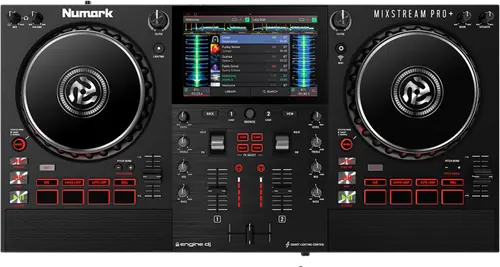
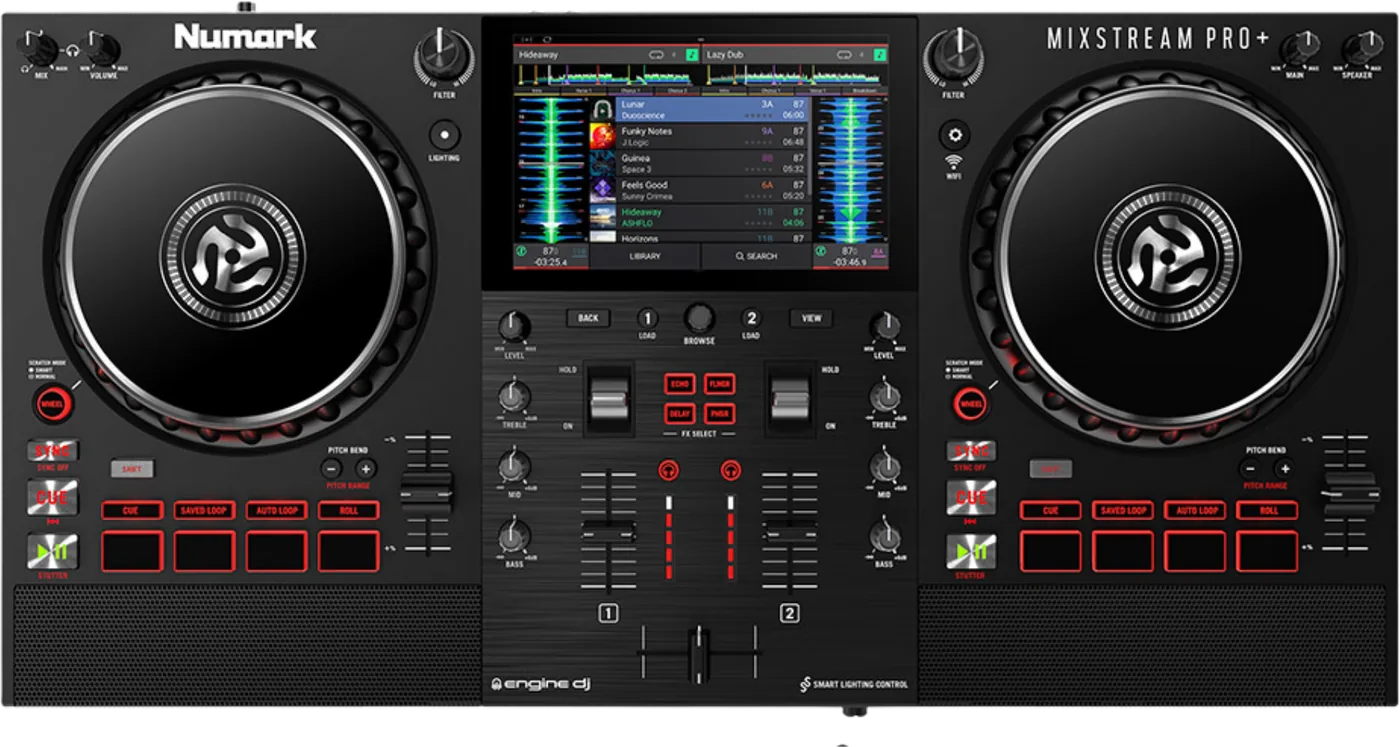
Booth briefing. The Numark Mixstream Pro+ is a standalone DJ controller: it plays from a drive with the laptop shut, running Numark's Engine DJ platform, so the drive you carry is the source for the gig. Supported drive formats are exFAT and FAT32, and the drive is prepared in one of those. Stems are prepared in the Engine DJ software on a computer and then packed to the drive, so the stems work is done before the gig rather than on the unit. Numark document it in one guide shared with two sibling products.
When it goes wrong: Denon USB format, exFAT or FAT32 The Denon will not read the drive
Fast Lane
The five things that decide your gig
The five things on the Numark Mixstream Pro+ that change what happens next, if you are reading this in the booth. All five are explained in full further down this page.
exFAT and FAT32. That is the whole list, for USB drives and SD cards alike.
Supported file systems are exFAT, which Numark recommend, and FAT32. The guide prints the same pair twice, once in Devices and File Analysis and again in the specification table under Playable Media, and the two agree exactly.
Numark frame it as a restriction rather than a recommendation, and apply it to both media classes in one sentence: make sure you are using only the supported file systems, for USB drives or SD cards, and file formats, for music files.
No firmware version, no Engine version and no model condition is attached to that list in either place. It is printed flatly for all three products, which is unusual and worth knowing, because there is nothing to check or update your way into.
The guide never names NTFS, HFS+ or APFS, in either direction.
The guide never names NTFS, HFS+, Mac OS Extended, APFS or ext4, neither as supported nor as excluded. Only exFAT and FAT32 are named anywhere in the document. That is a different claim from saying those file systems are unsupported, and this site makes the careful one: the guide does not discuss them. A DJ arriving with an NTFS drive or a Mac formatted drive gets no warning from this document, and the only signal is the word only in that restriction sentence.
Read that as a silence rather than a verdict. The document does not tell you what will fail, so the working rule is the list itself: format to one of the two named, and treat anything else as unaddressed here rather than as ruled out.
One guide covers three products, and singles this one out just once.
This one document covers the Mixstream Pro, the Mixstream Pro +, and the Mixstream Pro Go, and Numark set the rule twice: all product references to Mixstream Pro also apply to Mixstream Pro + and Mixstream Pro Go unless otherwise noted. It is an opt-out rule, so everything applies to all three unless a line says otherwise, and across 1,854 lines exactly six statements say otherwise. Four of the six are about the Pro Go’s battery or its power supply, one is the Box Contents line offering the three models as alternatives, and ONE is functional and singles out the Pro+.
The single functional line in the whole document that tells a Pro+ owner they have something the base Pro does not is this: Apple Music and Amazon Music are available with Mixstream Pro + and Mixstream Pro Go only. Numark add that connection to Amazon, Apple Music, Tidal and SoundCloud has to be enabled through an Engine DJ profile at enginedj.com.
Stems are made on a computer, and switched on before they exist.
The unit plays stems, it does not make them. Numark state that track stems must be created using the Engine DJ software and packed to an external drive for use with Mixstream Pro hardware, so every track you want stems on has to be processed on a computer beforehand and carried on a drive. Streamed and cloud tracks are outside that sentence, and so is anything added to the drive at the venue.
Stems have to be switched on before they exist on the unit. Numark describe buying a one-time licence at enginedj.com/stems and adding it to an Engine DJ profile, then powering the unit on with wi-fi connected and signed in to that profile, at which point a pop-up offers a reboot to activate the new features. Once the unit has restarted, Stems pad mode is reached with Shift plus the Cue button, and the top four pads isolate Vocal, Melody, Bass and Drums, dimly lit for muted and brightly lit for unmuted.
The control is Headphone Volume. There is no Cue Gain knob on the unit.
The control is called Headphone Volume. The front panel headphones entry says the headphone volume is controlled using the Cue Gain knob, and there is no Cue Gain knob anywhere on this machine: the top panel carries Headphone Mix and Headphone Volume, and the phrase Cue Gain appears exactly once in the whole document, in that one sentence. The Main Outputs entries do something similar, calling the level control the Main knob where the top panel names it Main Level.
So the move is to reach for Headphone Volume and stop hunting. Nothing is missing from the top panel.
If something goes wrong
The library on your drive will not open
The Mixstream Pro+ plays from the drive you brought, so a damaged Engine library on that drive is the failure that stops the set rather than an inconvenience back at the desk.
Engine DJ publish the causes of a corrupted Engine library and the recovery for a drive. The causes they name are force ejecting a drive, particularly during an import or a sync, using third party tools on the database file, switching the device to standalone mode before the drive has ejected successfully, and storing the drive near magnets. The recovery for an external drive is to close Engine DJ, go to the root of the drive, delete the Database2 folder inside the Engine Library folder, restart the software and resync from Sync Manager.
One line in that article matters more than the rest for a unit that plays from your drive rather than a computer: external drive databases are not backed up by the automatic backup. The safety net that covers a desktop library does not extend to the drive you carry.
It will not join the venue Wi-Fi
On the Mixstream Pro+ a Wi-Fi network it refuses to join may be a security standard rather than a password.
Engine DJ publish a Wi-Fi failure that names this hardware. Attempting to connect an Engine OS device to a WPA3 enabled network may fail, because Engine OS devices are not WPA3 compatible, and Numark Mixstream Pro is named in the affected list alongside the Denon DJ Prime and SC Live series. The documented answer is to use a WPA2 network, or a WPA2 and WPA3 mixed mode network with protected management frames set to optional rather than enabled.
That is a venue router problem rather than a unit problem, and it is worth knowing before a set that depends on streaming or the remote library rather than after the connection has failed.
What to watch for
What the guide never tells you about a drive it will not read
The other half of the Mixstream Pro+ file system story is a silence, and it is the half that costs people. The guide never names NTFS, HFS+, Mac OS Extended, APFS or ext4, neither as supported nor as excluded. Only exFAT and FAT32 are named anywhere in the document. That is a different claim from saying those file systems are unsupported, and this site makes the careful one: the guide does not discuss them. A DJ arriving with an NTFS drive or a Mac formatted drive gets no warning from this document, and the only signal is the word only in that restriction sentence.
No maximum drive capacity, no minimum, no maximum partition size, no maximum track count and no library size limit are given. No partition scheme requirement is given either: MBR, GPT and partition tables are never mentioned, and nothing says what happens with a multi-partition drive. The FAT32 four gigabyte per file limit is never mentioned, even though FAT32 is listed as supported and 192 kHz 32-bit WAV and AIFF are listed as playable.
This page will not fill those gaps by inference. What the document supports is the list and nothing beyond it, so the working rule is to prepare a drive to one of the two named formats and to treat anything else as unaddressed by Numark rather than as ruled out by them.
How this page reads a guide written for three products
The Mixstream Pro+ guide is the one document in this brand's set published in a single language, so the cross-edition reading behind the rest of these pages has no counterpart here and none should be inferred. Where this site records a difference between the English and the Spanish of a Numark manual, it is recording a documentation slip and nothing more. One PDF carrying five languages is translated and laid out by different people under different deadlines, and the differences below are different in every document, which is what ordinary editing slips look like. None of it suggests a manufacturer trying to mislead anyone, and this site does not read it that way.
The same reading applies to the scope finding above. A document that covers a family under an opt-out rule is an editorial decision about a manual, not a claim about the machines, and everything below says what to DO first and what the document prints second.
Nothing in the guide can be dated to a release
The Mixstream Pro+ carries software that gets updated and a guide that names no version of it. The guide names no Engine DJ version and no Engine OS version anywhere, and the v5.0.0 on the cover is the document’s own version rather than the software’s. The two version-adjacent statements both point at the screen rather than printing a number: an About and Update page that displays the product name and the installed firmware version, and an Engine Lighting version line. Nothing in the document can date a feature to a release.
The guide names no firmware version, so nothing in it can be dated to a release. It describes an About and Update page that displays the product name and the installed firmware version, and a Firmware Update Mode reached by tapping Options on that page, then hands the reader off to the instructions included with the firmware update package they downloaded. Where that package is downloaded from is never stated: the document gives enginedj.com/downloads for the desktop software and enginedj.com/stems for the stems licence, and no address for firmware. Whether an update can run from a USB drive or SD card, whether it erases settings or playlists, and whether the three models share firmware are all unstated, and no firmware condition is attached to any feature the guide describes.
So the practical order is to read the version off the About and Update page on the unit itself, and to treat the guide as a description of the screens rather than as a record of what a given machine is running.
What the guide does not answer
On the Mixstream Pro+ the published record stops short of the panel in a few places, and there is nowhere in it to look up a symptom. The guide contains no troubleshooting section. What it has instead is a set of scattered notes: the overheat warning in the toolbar, the Failed to Download message on the remote library, the Bluetooth latency note and the beat grid editing blockers. There is no safety or warranty text either: it is deferred to a separate Safety and Warranty manual.
None of the seven guides contains safety or warranty text. All seven defer it to a separate Safety and Warranty manual, so the document a DJ keeps is not the one carrying the warnings.
None of that is fatal, but it does mean the document cannot be used the way a DJ wants to use one at a changeover, which is to look up what just happened and read the answer.
Compatibility
What the guide covers, before what the guide says
Read the Mixstream Pro+ guide knowing that most of it was written for a family rather than for one machine. This one document covers the Mixstream Pro, the Mixstream Pro +, and the Mixstream Pro Go, and Numark set the rule twice: all product references to Mixstream Pro also apply to Mixstream Pro + and Mixstream Pro Go unless otherwise noted. It is an opt-out rule, so everything applies to all three unless a line says otherwise, and across 1,854 lines exactly six statements say otherwise. Four of the six are about the Pro Go’s battery or its power supply, one is the Box Contents line offering the three models as alternatives, and ONE is functional and singles out the Pro+.
The single functional line in the whole document that tells a Pro+ owner they have something the base Pro does not is this: Apple Music and Amazon Music are available with Mixstream Pro + and Mixstream Pro Go only. Numark add that connection to Amazon, Apple Music, Tidal and SoundCloud has to be enabled through an Engine DJ profile at enginedj.com.
The guide does not distinguish the three models on speakers, ports, storage, weight, dimensions, processing or stems support. Speakers are described once and generically, the rear panel is described once for all three, and the connection list, the dimensions row and the weight row carry no model qualifier at all, even though the Pro Go contains a battery. So a Pro+ owner reading this document cannot always tell what they have, and cannot tell from the panel photographs either, because the guide never says which model it photographed. That is a documentation scope decision rather than anything about the machines, and it is the reason this page states what the guide covers before it states what it says.
The body text spells it Mixstream Pro + with a space before the plus, and the specification table spells it Mixstream Pro+ closed up in the Power row. Elsewhere the same machine is called Mixstream Pro, Mixstream Pro hardware, your Mixstream device, Mixstream, your EngineOS hardware and Engine OS products, and there is no glossary reconciling them.
The file systems, printed twice and agreeing with themselves
The Mixstream Pro+ reads your drive rather than your laptop's, so this is the paragraph to read before anything else on the page. Supported file systems are exFAT, which Numark recommend, and FAT32. The guide prints the same pair twice, once in Devices and File Analysis and again in the specification table under Playable Media, and the two agree exactly.
Numark frame it as a restriction rather than a recommendation, and apply it to both media classes in one sentence: make sure you are using only the supported file systems, for USB drives or SD cards, and file formats, for music files.
No firmware version, no Engine version and no model condition is attached to that list in either place. It is printed flatly for all three products, which is unusual and worth knowing, because there is nothing to check or update your way into.
That last point is worth more than it looks. A list with nothing attached to it cannot go out of date under you between one gig and the next, and a drive prepared today is prepared on the same terms as a drive prepared a year ago.
The file formats, and the ones never named
The Mixstream Pro+ playable format list is broad, and the gaps in it are the ones worth checking a library against. AAC and M4A, AIF and AIFF at 44.1 to 192 kHz and 16 to 32-bit, ALAC, FLAC, MP3 at 32 to 320 kbps, MP4, Ogg Vorbis, and WAV at 44.1 to 192 kHz and 16 to 32-bit. WMA, AC3, DSD and Opus are never named, there is no statement about DRM protected files, and MP4 is listed as a music format with no note about video files carrying the same extension.
Computer Mode, documented in one sentence
The Mixstream Pro+ has a mode that turns it into a controller, and the published record for it is a single line. Computer Mode is documented in one sentence in the Control Center list: it switches the unit to sending and receiving MIDI to and from a computer. Which software it works with is not stated, Serato and Virtual DJ are never named, whether the audio interface is available to the computer is not stated, and what happens to a playing track when the mode is switched is not stated.
The guide gives two different lists of pitch fader ranges. The hardware shortcut, Shift plus a Pitch Bend button, offers ±4%, 8%, 10%, 20%, 50% or 100%, while the Default Speed Range setting in the Profile menu offers ±4%, 8%, 10%, 20% or 50%. The 100% range is in one list and not the other, and whether it can be set as a default cannot be settled from this document.
The remote library, and the ceiling on a single track
The Mixstream Pro+ can pull a track across the network from a computer, up to a point that is printed once and easy to miss. The Engine Remote Library browses a computer’s full Engine DJ library over the network and caps a remote track load at 250 mb, in Numark’s own lower case, failing with a Failed to Download message beyond it. Long DJ tools and high resolution files are the ones that will not come across, and nothing warns which tracks are too large before you try. Downloaded tracks bring their beat grids, saved cues and saved loops with them, and edits made on either side sync back to the other.
An hour long recording, a long edit or a high resolution master can all sit above that line, and those are exactly the files a DJ reaches for when a room asks for something unusual.
Features explained
Stems, the computer they need and the licence in front of them
This is the one place where the Mixstream Pro+ sends you back to a desk, and there are two steps rather than one. The unit plays stems, it does not make them. Numark state that track stems must be created using the Engine DJ software and packed to an external drive for use with Mixstream Pro hardware, so every track you want stems on has to be processed on a computer beforehand and carried on a drive. Streamed and cloud tracks are outside that sentence, and so is anything added to the drive at the venue.
Stems have to be switched on before they exist on the unit. Numark describe buying a one-time licence at enginedj.com/stems and adding it to an Engine DJ profile, then powering the unit on with wi-fi connected and signed in to that profile, at which point a pop-up offers a reboot to activate the new features. Once the unit has restarted, Stems pad mode is reached with Shift plus the Cue button, and the top four pads isolate Vocal, Melody, Bass and Drums, dimly lit for muted and brightly lit for unmuted.
Whether the licence is per unit or per profile is not stated: it is bought against a profile and activated by rebooting a unit, and the guide never says how many units one licence covers. Whether stems work offline after activation is not stated either, since wi-fi and a profile login are named only as activation requirements. Nor is it stated whether stems can run on both decks at once, or which of the three models support them: the sentence is Mixstream Pro units also support Stems pad mode, in the plural, with no model named.
So the order to plan is licence, profile, wi-fi and reboot at home, then rendering on the computer, then the drive in the bag. None of those steps is one to attempt at a changeover.
What it does with no computer, and what still needs one
The Mixstream Pro+ describes a complete workflow with no computer in it and never once calls that standalone. What the unit does with no computer, all of it described in the guide: browsing and loading from USB drives, SD cards, streaming and cloud services; analysing tracks on the unit as they are loaded; creating, renaming, reordering and deleting playlists; editing beat grids; recording the set to a connected drive; running lighting through SoundSwitch; and syncing to Ableton Link. Numark never call any of that standalone operation.
Five things send you back to the Engine DJ software on a computer: creating stems, backing up the database before a cloud library can be retrieved, adding RGB waveform data to tracks that lack it, naming and colouring hot cues, and naming loops or setting active loops. The desktop software is also what Numark point at for pre-analysing a library, and the box carries a download card rather than the software, with an instruction printed twice to download it from enginedj.com/downloads.
Smart Scratch, and a button with three jobs
A Mixstream Pro+ out of the box does not behave like a record under your hand, and nothing on the panel shows which mode is live. Smart Scratch is enabled by default, and Numark say so. In that mode the timeline keeps running under your hand and the track resumes from where it would have been when you let go, which is not what a platter does on a record. One press of the Scratch Mode button disables it and enables vinyl mode, and the Default Scratch Mode setting sets which one you get. Nothing on the machine shows which mode is active before you touch the platter.
The Scratch Mode button does three different things depending on how it is pressed. A press toggles Smart Scratch and vinyl mode, Shift plus a press enters and exits jog mode, and a press and hold enters and exits Grid Edit Mode, where the touchscreen controls rewrite the loaded track’s beat grid. A long press during a set therefore lands in a grid editor with a track playing, so it is worth knowing the difference before it happens.
Needle Lock changes whether tapping the track overview does anything. Numark state that the feature can be used during playback if Needle Lock is off, and that with Needle Lock on, stopping the platter with your hand or palm allows you to swipe through the track overview. A screen that ignores a tap mid track is that setting rather than a fault, and it lives in the Profile and Safety menu, several screens away from the waveform being tapped.
Internal storage is never named, in either direction
Plan a Mixstream Pro+ gig around the drive you brought, because the guide names no other source. No internal drive is named for any of the three products. The words internal and SATA appear zero times in the document, and the source list Numark give is USB drives, SD cards, or connected streaming and cloud services, with no fourth entry. The guide never says the products lack internal storage: it simply never names any. What it does describe on the unit is pre-installed demo and sampler content, with no statement of how much there is, where it lives or whether it can be removed.
That is a silence of the same kind as the file system one above, and it gets the same treatment here: the page records what the document does and does not name, and stops there.
Connections and setup
Where the music goes in, and the eject rule
The Mixstream Pro+ takes three drives at once and has an opinion about the kind you use. Two USB Type-A ports and one SD card slot. Numark list playable media as SD, SDHC and SDXC cards and USB mass storage devices, naming flash memory and external HDD enclosures, so mechanical drives in caddies are contemplated. Whether a bus powered mechanical drive will run from those ports, and what current they supply, are not stated, SSDs are not named, and microSD and adapters are not mentioned: the slot entry says a standard SD card. A keyboard can be connected to the USB ports for searching the library.
Numark recommend using only high quality name brand USB 3.0 drives or Class U1 or U3 SD cards as source drives, especially when cloud services are enabled. That advice is buried at the end of the cloud settings section rather than in Devices and File Analysis where a DJ would look for it, and it is not in the specification table either.
Drives are ejected from the Source page of the Control Center rather than pulled. Numark state that if a track on the device is playing you are asked whether to continue, and ejecting anyway stops the track.
The one input, and what it means for a guest
The Mixstream Pro+ rear panel is short, and what it lacks is the part to plan around at a shared gig. One microphone input on a 6.35 mm jack on the front panel, for which Numark specify a standard dynamic microphone, with a Mic Level knob and attenuation and routing settings in the Mic menu. There is NO line input, no phono input, no RCA aux input and no grounding terminal on this machine, and the guide never says so in words: it is visible only from what the rear panel list does not contain. Nothing analogue can be patched in, so a guest turntable, CDJ or laptop arrives over Bluetooth or not at all. No phantom power statement is given and no input impedance is published.
Bluetooth 5.0 handles an audio input for streaming, an audio output, or a keyboard for searching. An input device is routed with the Assign Input To field to None, Deck 1 to 2, or Main Out. Numark warn that Bluetooth audio may carry a small amount of latency, and that running wired and wireless output at the same time may leave a slight delay between the two signals.
What comes out, and the speakers in the lid
The Mixstream Pro+ gives an engineer a balanced feed and has no separate booth or zone feed to offer alongside it. Balanced XLR main outputs, an unbalanced RCA main pair, and headphones on 6.35 mm and 3.5 mm on the front panel. There is no booth output, no zone output and no digital output, and the XLR and RCA pairs share one Main Level control, so a separate monitor feed at a different level is not available. Headphone output is specified as less than 30 mW with no impedance, so the figure cannot be compared against another headphone amplifier.
Built in speakers, which Numark state play the same audio as the Main Outputs and have their own Speaker Level knob. A setting sends the microphone to them or not, and the mono summing setting for the Main Outputs explicitly does not apply to them. The entire speaker specification is one row, a frequency response of 20 Hz to 20 kHz plus or minus 1 dB, which is the identical figure printed for the balanced main outputs, with no measurement conditions, no wattage, no driver count, no driver size and no SPL to qualify it.
The headphone controls, and the name in the text
The Mixstream Pro+ headphone level lives on the top panel under a name the front panel entry does not use. The control is called Headphone Volume. The front panel headphones entry says the headphone volume is controlled using the Cue Gain knob, and there is no Cue Gain knob anywhere on this machine: the top panel carries Headphone Mix and Headphone Volume, and the phrase Cue Gain appears exactly once in the whole document, in that one sentence. The Main Outputs entries do something similar, calling the level control the Main knob where the top panel names it Main Level.
The power supply, and the order to switch things on in
Label the Mixstream Pro+ power brick, because the specification table splits the supply by model and the box contents line does not. The Pro and the Pro+ take 12.0 V at 3.0 A and the Pro Go takes 19 V at 3.42 A, both DC and centre positive, and that Power row is the only per model row in the whole specification table. The Box Contents line says only Power Supply for all three models, and the guide never warns that the two supplies must not be swapped, so in a shared booth or a shared flight case it is worth labelling the brick.
Power the unit on only after all input devices are connected and before the amplifiers and loudspeakers, and power the amplifiers and loudspeakers off before the unit. Powering off is a touchscreen prompt rather than a hard switch. Numark also ask that the vent is unobstructed, and state that if the unit rises above normal operating temperatures an overheat warning appears in the toolbar and the unit should be shut down to cool if it persists. No operating temperature range is published.
Logging in to a profile clears things
Sign the Mixstream Pro+ in to an Engine DJ profile before the gig rather than during one. Logging in to an Engine DJ profile clears things. Numark state that existing streaming and cloud service logins will be removed and any tracks loaded to a deck will be ejected, and that sentence sits at the end of the paragraph describing what logging in gains you. Do it before the set rather than as a fix during one, because no confirmation dialogue is described.
A wired network with no socket for it
Plan a Mixstream Pro+ network setup around wi-fi, because the wired route the guide mentions cannot be built from what it prints. The guide refers twice to a wired network connection, once for the Engine Remote Library over an Ethernet cable and once for Ableton Link over a wireless or wired network, and neither the rear panel list nor the Connections specification contains an Ethernet port. How that connection is made is not explained, so a hard-wired Link setup cannot be built from this document as printed.
Firmware, drivers and manuals
Official downloads and documents
Go to Numark for the files themselves. We link their pages instead of hosting a copy, because a manual copied here is a snapshot of release day and theirs is the one that stays current.
Manuals. Official Numark manual page →
Broken link? Let us know and we'll fix it.
Frequently asked questions
What is it, and does it play without a computer?
A two deck unit that plays from its own media and screen with no computer attached, running Engine DJ, with a seven inch touchscreen and built in speakers. The guide never says so: its only introductory sentence is a thank you for purchasing, the words standalone and all-in-one do not appear, and the deck count can only be read off Load 1 and Load 2 and the sampler output options. What it does instead is describe a complete workflow with no computer in it and leave the reader to notice.
User Guide, v5.0.0, English only. That is an Engine style version number rather than a manual revision, the document carries no date, and there is no Spanish, French, Italian or German section anywhere in it.
How big is it, and how does the specification table read?
Main outputs at 20 Hz to 20 kHz plus or minus 1 dB, dynamic range greater than 114 dB and signal to noise greater than 94 dB, both A-weighted, THD under 0.01% for line and under 0.05% for the microphone, balanced main output at plus 20 dBu maximum and plus 4 dBu unity, unbalanced at plus 16 dBu maximum and 0 dBu unity, microphone input at minus 40 dBu unity. A seven inch, 178 mm diagonal touchscreen. Wi-fi at 2.4 GHz and 5 GHz on 802.11a/b/g/n/ac, Bluetooth 5.0. 566 by 284 by 74 mm and 3.68 kg, which Numark also print as 22.3 by 11.2 by 2.9 inches and 8.11 lbs.
Channel separation is printed as less than minus 110 dB at 1 kHz, and a less than applied to a negative number describes worse separation rather than better, which is the opposite of what the row is claiming: every other figure in the table uses its inequality the other way. The connections row reads 2 USB port for USB drives, a plural quantity with a singular noun. And the dimensions and weight are given once with no model qualifier, for three products one of which carries a battery, in the same table whose Power row takes the trouble to split them.
Can it record the set, and where does the file go?
Recordings are written to a connected media device rather than to the unit, into a folder called Sessions, and can be browsed afterwards under the Files section of the library. The recording file format, bit depth, sample rate and maximum length are not stated. A Maximize Recording Volume option normalises the recording at minus 1 dBFS and Numark state that it is enabled by default.
What comes in the box?
The unit, a power supply, a USB cable, an Engine DJ software download card, a display cleaning cloth, a Quickstart Guide and a separate Safety and Warranty manual. There is no printed User Guide and no media of any kind: no USB stick and no SD card. The card is a card rather than the software, and Numark follow the list immediately with an instruction to download the software from enginedj.com/downloads.
Playing soon and it is not working?
Emergency Mode walks you through the checks in order, and it works with no signal once you have opened it.
Start Emergency ModeKeep the Emergency Card
We will email you the printable PDF so it is on your phone before the next dark booth. Occasional notes that save gigs. No spam, unsubscribe in one click.
Registering is free and counts everywhere on Save My Gig. We send a confirmation email first. Your address is stored with Brevo, our email provider. Unsubscribe any time. Privacy