
PRIME 4+, the field manual
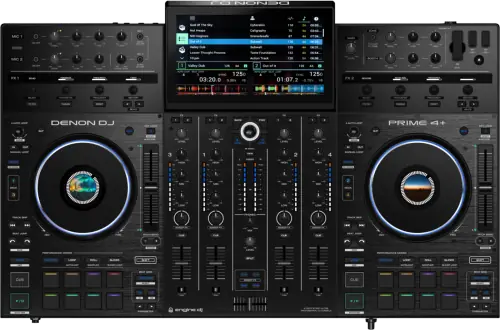
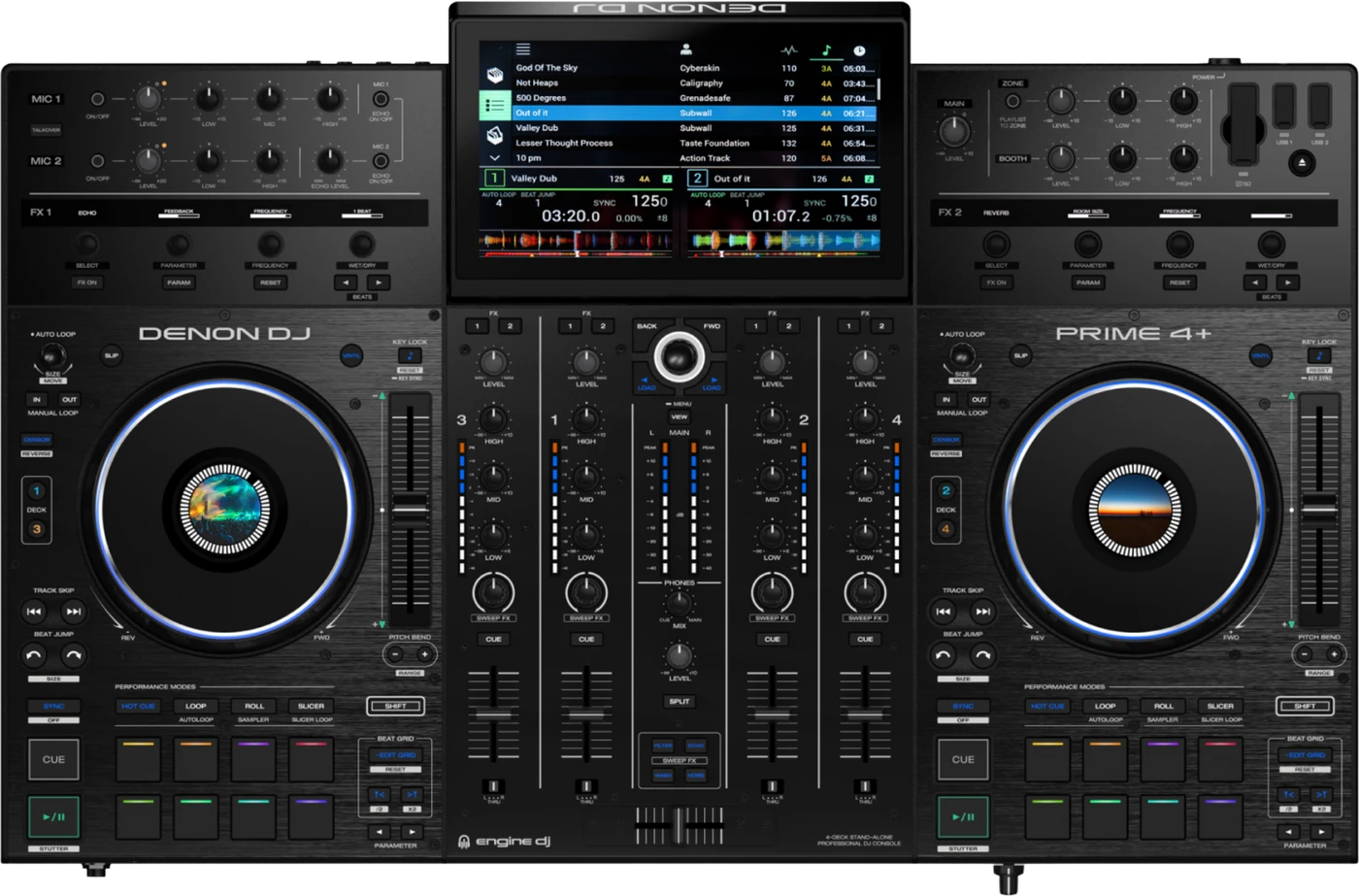
Booth briefing. The PRIME 4+ is Denon's four deck, four channel all-in-one, the model that sits alongside the PRIME 4 in the Engine DJ range. It has two jog wheels and two microphone inputs. Stems need no licence on this unit: they are rendered on a computer in Engine DJ Desktop, packed to the drive, and played back by the deck rather than processed on it. USB drives are formatted exFAT or FAT32 on an MBR partition, and that drive is the library the unit plays from.
When it goes wrong: Denon USB format, exFAT or FAT32 The Denon will not read the drive
Fast Lane
The five things that decide your gig
The five things on the PRIME 4+ that change what happens next, if you are reading this in the booth. All five are explained in full further down this page.
The partition scheme matters as much as the format. MBR, not GUID.
This unit's own FAQ documents an MBR requirement, so a GUID Partition Map drive can be refused even when the file system on it is right.
A drive that works perfectly on a computer can therefore look defective here, and it is a formatting mismatch rather than a dead drive.
Drives read exFAT or FAT32, and the user guide recommends exFAT outright.
exFAT or FAT32 on an MBR partition scheme is the whole supported set. Denon's user guide marks exFAT as the recommended one with no size condition on it, and the model FAQ separately recommends it for drives of 1TB and larger.
Format once, to that, and make it the drive you travel with rather than a decision you take per booking.
Stems are made on a computer. This deck plays them back, it does not separate them.
A track is separated into stems in Engine DJ Desktop, exported, and only then played back here with each stem controllable independently.
The marketing line reads as real-time on-device processing to anyone who has not read the FAQ. In a booth, assume a track needs its stems rendered before the gig, not during it.
It is an all-in-one, so one fault takes the whole booth down at once.
4 decks and 4 channels in one box means there is no half-working state: mixer, players and screen fail together.
That is the trade for not carrying six pieces of gear, and it is the reason a printed list and a backup source matter more on this unit than on a separates rig.
Eject a drive on the screen before you pull it out of the socket.
The user guide states it as a rule rather than a suggestion: drives must be ejected before being removed, to prevent data corruption.
Ejecting also unloads that drive from every player on the network, so it is a move to make between tracks and not during one.
If something goes wrong
Stems will not separate on the unit itself
Short answer. That is expected. Stems are rendered in Engine DJ Desktop, on a computer, before a track ever reaches this deck. The PRIME 4+ plays back an already rendered stem file, it does not separate one live.
Why this happens. Denon's own marketing calls this "the industry's first standalone Stem separation," which a DJ reasonably reads as real-time on-device processing. Denon's operational documentation, the stems FAQ and this unit's own FAQ, both state the rendering step happens in the desktop software first.
Fix it now. With no laptop in the booth, play the track without stems. This is not a licence problem and there is nothing to buy. Stems needs no licence on this unit. The user guide states the exception by model: "Stems support is automatically available on all PRIME 4+ units. For PRIME 4 hardware, Stems requires a one-time license purchase and activation." Press Hot Cue a second time and Stems pad mode is there, with nothing to buy and no reboot to wait for. What is missing is the rendered file, and only a computer makes one. Real-time on-device stem rendering is documented for the RANE SYSTEM ONE under Engine DJ 5.0, a different unit this site does not cover, not for the PRIME 4+.
Avoid it next time. Render stems for your set list in Engine DJ Desktop before you leave for the gig, the same way you would prepare cues or a beatgrid.
A USB drive is refused or will not read
Short answer. Check the partition scheme, not just the file system. The PRIME 4+ FAQ documents an MBR requirement, GUID Partition Map drives are not what it expects.
Why this happens. A drive formatted on a modern Mac often defaults to GUID, which works for general use but is not the scheme this unit's own documentation calls for. File system should be exFAT or FAT32, exFAT recommended for drives 1TB and larger.
Fix it now. Reformat the drive as exFAT or FAT32 with an MBR partition scheme on another computer, then copy the music back on.
The other half of this fault. A drive that used to work and now will not is a different question from a drive that never worked. Drives get ejected, never pulled. The guide states it as a rule: "To prevent data corruption, drives must be ejected before being removed from the player." Ejecting a device unloads its tracks from every networked media player, and if a track from it is playing the unit asks before it stops that track. A drive pulled out of a socket while the unit was reading it is the documented way to arrive at a library that no longer opens.
Avoid it next time. Format and test drives on this exact unit, or at minimum confirm MBR, before the gig. Denon name the drives they want rather than leaving it to chance: "We recommend using only high-quality, name brand USB 3.0 or Class U1 or U3 SD cards as source drives, especially when cloud services are enabled."
An overheat warning appears in the toolbar
Short answer. The PRIME 4+ tells you on its own screen, in the toolbar along the top, rather than leaving you to work it out from behaviour. The unit says so when it is too hot. The guide: "If your Engine OS device rises above normal operating temperatures, an overheat warning will be displayed in the toolbar." The instruction that follows it is to leave sufficient space around the unit for ventilation, and to shut it down and let it cool if the overheating persists.
Why this happens. A unit this size is often built into a coffin or a case with the lid on, under lighting, with a laptop riser or a bag on the panel behind it. All four remove the space the guide asks for.
Fix it now. Take whatever is sitting on or against the unit off it and open the airflow around it. If the warning stays, the guide's instruction is to shut the unit down and let it cool, so the decision to make is when, not whether, and the end of a track is better than the middle of one.
What to watch for
The jog wheel and mic input count, resolved
What is documented. Denon's own materials disagree with themselves: the abbreviated tech-spec table on the product page lists one jog wheel and one combo mic input, while the body copy on the same page describes multiple high-resolution jog wheels and two independent mic channels.
What this page states. 2 jog wheels at 6 inch each, and 2 mic inputs, matching the PRIME 4 (non-plus) detailed spec table and every photograph of the unit. The abbreviated numbers are not published here.
The user guide is the strongest citation of the three. The user guide settles the microphone count on its own. Under Audio Inputs, the PRIME 4 / PRIME 4+ specification table lists two RCA input pairs at line level, two RCA input pairs switchable between phono and line, and two combined XLR and quarter-inch inputs, and the top panel section describes Mic 1 and Mic 2 as separate inputs with separate EQ.
Do this. If you are quoting specs from Denon's own page, use the detailed table or the body copy, not the abbreviated summary table, which is the one that disagrees with the hardware.
Wi-Fi, Bluetooth and the streaming services
Short answer. The PRIME 4+ is the model in this range that carries Bluetooth, and both wireless features are optional rather than required for playing music off a drive. Wi-Fi is built in, on 2.4 GHz and 5 GHz to 802.11a/b/g/n/ac. A Wi-Fi screen appears every time the unit powers on, and it can be dismissed for that boot or stopped for good with the Do not show again at startup box. The network is what streaming, cloud storage, the Engine DJ profile and Ableton Link all run on.
Bluetooth. Bluetooth is on the PRIME 4+ and not on the PRIME 4. The guide marks both the Bluetooth page and the Bluetooth setting for this model within the PRIME 4 range, and the earlier guide that covers the PRIME 4 alone does not mention Bluetooth anywhere. It takes an audio input, an audio output or a keyboard for searching, and an audio input is assigned to nothing, to a deck, or straight to the main output.
The services that are model-specific. Apple Music and Amazon Music are marked in the guide as available with the PRIME 4+ and three other models only, and both have to be switched on for the Engine DJ profile first. Apple Music will stream up to four tracks at once and Amazon Music up to two, and each downloads one track at a time.
Why it matters. A Bluetooth audio input assigned to the main output is a house phone connected straight to the PA with the channel faders out of the picture, which is useful between sets and is worth checking before yours.
Compatibility
Firmware and linking more players
Short answer. PRIME 4+ firmware is Engine OS, one shared line across the whole PRIME range: the version at the top of the list is 5.0.4, Denon's own published notes stop at 5.0. It launched with Engine DJ 3.1 as its inbuilt software.
Where the version is read. The version is on the unit. Settings > About / Update shows the product name, the installed firmware version and other device information, and Firmware Update Mode on that same page restarts the unit into its updater to take an update package.
What the computer port is. The USB B port is a MIDI link, not an audio one. The guide describes it as sending and receiving MIDI messages to and from a computer, and Computer Mode in the Control Center is the switch that puts the unit into that role. The user guide documents no DVS and no third party DJ software mode for this unit.
What the Ethernet port is. The Ethernet Link port goes to a computer or to a router for a wired internet connection. The job the guide gives it is lighting and video: the unit "will send time, BPM, and other track data to the compatible StagelinQ lighting and video software over this connection to a computer".
Borrowing a computer's library without packing a drive. A computer on the same network can lend the unit its whole library. Engine Remote Library browses an open copy of the Engine DJ software over Wi-Fi or Ethernet and downloads a track on demand, up to 250 MB each, carrying its beat grid, saved cues and saved loops across, and edits sync back the other way.
Why it matters. An SC6000 or SC6000M PRIME can link in for extra players, sharing the standalone workflow rather than requiring a laptop.
Drive format and the MBR requirement
Short answer. exFAT or FAT32, on an MBR partition scheme. This unit's own FAQ is the source for the MBR requirement specifically, and it is also where the recommendation of exFAT for drives of 1TB and larger comes from.
What the user guide itself says. The user guide prints one line for this and attaches no size condition to it: "Supported file systems: exFAT (recommended), FAT32." So the two Denon documents do not disagree, they aim at different things: the guide recommends exFAT for any drive, and the FAQ says at what size it stops being optional.
The file formats. The guide lists AAC/M4A, AIF/AIFF, ALAC, FLAC, MP3, MP4, Ogg Vorbis and WAV, with AIFF and WAV given as 44.1 to 192 kHz and 16 to 32 bit and MP3 as 32 to 320 kbps. The specification table gives the unit's own digital audio as 24-bit at 44.1 kHz.
The drives Denon ask for. Denon name the drives they want rather than leaving it to chance: "We recommend using only high-quality, name brand USB 3.0 or Class U1 or U3 SD cards as source drives, especially when cloud services are enabled."
Why it matters. A drive that works fine on a computer can still be refused here if it carries the wrong partition scheme, which looks like a defective drive and is actually a formatting mismatch.
Where music goes in, including the internal bay
Short answer. The PRIME 4+ has more places to put music than most DJs use. There are five places music can come from on the unit itself: an SD card slot and USB Ports 1 and 2 on the top panel, USB Ports 3 and 4 on the rear, and an internal 2.5 inch SATA bay under the bottom panel. The specification table lists the media as SD, SDHC and SDXC cards and USB mass-storage devices, naming flash memory, an internal 2.5 inch SATA drive and an external hard disk.
The bay nobody mentions. The internal bay is owner-fitted and the guide walks it through. It takes what Denon call nearly any standard 2.5 inch SATA drive on the market, solid state or hard disk, in a 2.5 inch (63.5 mm) form factor, using exFAT or FAT32, and an mSATA drive works with an adapter. The unit has to be powered off, the panel is in the centre of the bottom panel, and the one warning attached to the job is not to overtighten the four mounting screws.
Getting a drive back out. Drives get ejected, never pulled. The guide states it as a rule: "To prevent data corruption, drives must be ejected before being removed from the player." Ejecting a device unloads its tracks from every networked media player, and if a track from it is playing the unit asks before it stops that track.
Why it matters. An installed internal drive turns the residency question round: the music lives in the unit and the travelling drive becomes the backup rather than the only copy. It also means a venue unit may already hold a library that is not yours, and the Source menu is where you find out.
Features explained
Stems, in full
Short answer. The PRIME 4+ plays stems back, it does not make them. A track is separated in Engine DJ Desktop software, then packed to the drive, and each stem is controllable independently once the track is on a deck here.
It is already unlocked on this model. Stems needs no licence on this unit. The user guide states the exception by model: "Stems support is automatically available on all PRIME 4+ units. For PRIME 4 hardware, Stems requires a one-time license purchase and activation." Press Hot Cue a second time and Stems pad mode is there, with nothing to buy and no reboot to wait for.
What the pads do. In Stems pad mode the top four pads isolate the stems, and the guide gives the order left to right as Vocal, Melody, Bass and Drums. The two Parameter buttons are the fast version: one mutes melody, bass and drums to leave the vocal, the other mutes the vocal to leave the instrumental, and pressing again unmutes.
What has to happen first. Making a stem track is three steps on a computer, not one. Engine DJ has to download its stems processor before it can render anything, each track is then rendered from the collection, and the result has to be packed to the drive: "Stem tracks can be packed using the Sync Manager or by dragging and dropping tracks or playlists to an external storage drive." Engine DJ cannot play a stem file back, so the first time you hear one is on the deck.
When professionals use it. Prepared, in advance, for tracks you already know you will play, the same discipline as beatgrids and cue points.
Four decks on two platters
Short answer. The PRIME 4+ has 4 decks and 2 platters, so each platter answers for two decks in turn. Four software decks sit on two hardware decks. The left deck controls Deck 1 or Deck 3 and the right deck controls Deck 2 or Deck 4, and holding Shift while pressing the Deck 3 or Deck 4 button switches between four-deck and two-deck operation. Each platter is capacitive and touch sensitive: with Vinyl on it scratches, with Vinyl off, or when you touch only the side of it, it bends the speed instead.
The two rear ports change what the deck buttons do. The two rear USB ports do double duty. Ports 3 and 4 take USB drives, and they also take up to two LC6000 PRIME controllers, one driving Deck 3 and one driving Deck 4. With an LC6000 connected, tracks already loaded to Decks 3 or 4 move to Decks 1 or 2 and the matching Deck button on the unit is disabled.
The screens. One main multi-touch display at 10.1 inches (257 mm) diagonal, a full-colour round display in the centre of each platter, and a small monochrome OLED strip over each of the two FX units.
Why it matters. A deck that will not respond to the platter in front of you is often a deck the platter is not currently addressing, and the Deck button is what moves it. On a unit where one chassis is the whole booth, knowing that before the first track is worth more than knowing it after.
Recording the set, and where the file lands
Short answer. The PRIME 4+ records its own output to a drive you are already carrying, with no computer and no external recorder. The unit records its own set to a connected drive, from the Record page in the Control Center, with start, pause, resume and stop and a name typed in at the end. "Recorded files will be saved in a folder called Sessions on your media device", and they can be played back from the Files section of the library. Maximize Recording Volume normalises the finished file at minus 1 dBFS and is on by default.
Why it matters. The recording device is chosen separately from the source device, so it is possible to have a source selected and no recording destination set, and to find that out at the end rather than at the start. Set both before the first track.
An external source loses the effects
What is documented. The PRIME 4+ treats a channel switched to Line differently from a channel playing off a drive. An external source loses almost all of the effects. The guide puts it in one line: "When using Line Inputs, only the Filter Sweep FX will be available." Echo, Noise and Wash Out are not there for a turntable or a CD player.
What that means in a booth. A guest arriving with a turntable or a CD player gets the filter and nothing else on that channel, so a transition planned around the echo or the wash out has to be planned again once the source moves to the rear panel.
Do this. Check the front-panel Input Selector on every channel before the first track. It is the switch that decides whether a fader is controlling the software or the back panel, and nothing on the top panel shows you which way it is set.
Professional tips
Before you load in on one
Render the stems for your set list before you leave. The separation step runs in Engine DJ Desktop, on a computer, and this unit only plays a rendered stem file back. With no laptop in the booth there is no way to make one you did not prepare, so a stem track is a decision you take at home.
Build the drive around the partition scheme, not just the format. This unit's own FAQ calls for MBR, and a drive formatted on a modern Mac defaults to GUID. exFAT or FAT32 on MBR, and exFAT once the drive reaches 1TB.
Decide what happens if this one box stops. 4 decks and 4 channels in a single chassis means one fault takes the whole booth with it. An SC6000 or SC6000M PRIME links in for extra players on the same standalone workflow, and that link is worth establishing before you need it.
Quote the detailed table, never the abbreviated one. Writing a rider or checking what a venue has: this unit carries 2 jog wheels at 6 inch each and 2 mic inputs. Denon's own summary table says one of each and disagrees with the hardware in front of you.
Read the Engine OS version off the unit and expect the notes to trail it. The version at the top of the list is 5.0.4 while Denon's published release notes stop at 5.0. A version with no change list behind it is normal on this range rather than a sign somebody put something unofficial on the unit. The version is on the unit. Settings > About / Update shows the product name, the installed firmware version and other device information, and Firmware Update Mode on that same page restarts the unit into its updater to take an update package.
Power the room up around the unit, in that order. The order of power is documented in both directions. "Power on PRIME 4 only after you have connected all your input devices and before you power on your amplifiers and loudspeakers", and going the other way, "Power off your amplifiers and loudspeakers before powering off PRIME 4." Shutting down is a press of the power button and then the prompts on the touchscreen, not a pull of the cable. On a machine that is the mixer as well as the players, getting that order wrong sends the thump through the house PA rather than through a spare channel.
Set the Input Selectors and the zone before anyone plays. Every channel can be switched to a rear-panel source, and Deck 4 can be handed to a second room. Both are single controls that change what a fader does, and both are quicker to check cold than to diagnose warm.
Connections and setup
The four channels, the two mics and the zone output
Short answer. The PRIME 4+ takes an external source on every one of its 4 channels. Every channel chooses its own source on a front-panel Input Selector, either Engine/USB for the track on that layer or Line for whatever is wired to the back. On the rear, two channels have plain RCA line inputs and two have RCA inputs switchable between line and phono, with a grounding terminal beside them for turntables.
The microphones. Two microphone inputs, on combined XLR and quarter-inch sockets, for what the guide calls "standard dynamic microphones". Mic 1 has high, mid and low EQ and Mic 2 has high and low only, each has its own level knob with a three-colour peak light, and the two share one echo control and one talkover button.
Where the microphones actually go. The microphones bypass the mixer entirely, and the guide flags it as Important: "The audio signals from the microphones are routed directly to the Master/Main Outputs." Whether they also reach the booth, the headphones and the zone is three separate switches in Settings > Mic, alongside per-mic attenuation and a per-mic gate threshold.
The zone output. A balanced XLR zone output runs a second room off the same unit. By default it carries the same signal as the Master/Main Outputs, and pressing Zone Channel Assign turns Deck 4 into a zone playlist that plays out of it instead. In that mode Channel 4's own level and EQ are bypassed and the Zone Level and Zone EQ knobs take over, which is why a channel 4 fader that does nothing is not always a fault.
Safety
The rules the guide states
Power, in order, both ways. The PRIME 4+ has a documented power sequence and it is not a preference. The order of power is documented in both directions. "Power on PRIME 4 only after you have connected all your input devices and before you power on your amplifiers and loudspeakers", and going the other way, "Power off your amplifiers and loudspeakers before powering off PRIME 4." Shutting down is a press of the power button and then the prompts on the touchscreen, not a pull of the cable.
If the power goes anyway. A power cut is survivable for the drives. The guide: "PRIME 4 has a protection circuit to safely eject all media after an unexpected power loss to protect your data from corruption. Reconnect your power source to return to normal operation."
Drives are ejected, not pulled. Drives get ejected, never pulled. The guide states it as a rule: "To prevent data corruption, drives must be ejected before being removed from the player." Ejecting a device unloads its tracks from every networked media player, and if a track from it is playing the unit asks before it stops that track.
Heat and ventilation. The unit says so when it is too hot. The guide: "If your Engine OS device rises above normal operating temperatures, an overheat warning will be displayed in the toolbar." The instruction that follows it is to leave sufficient space around the unit for ventilation, and to shut it down and let it cool if the overheating persists.
The three locks that stop an accident. Three locks live in Profile > Safety and each stops a different accident. Lock Playing Deck refuses to load a track onto a deck that is playing, Needle Lock stops a tap on the track overview moving the playhead during playback, and Pad Lock disables the pads and the pad mode buttons and leaves them unlit.
The screen saver, and what it is not. The screen saver is a setting rather than something that happens to you. Screen Saver Time offers Off, 15 minutes, 30 minutes or 60 minutes, what it does is dim the touchscreen rather than sleep the unit, and touching the screen or any hardware control ends it.
Mains, and the battery that is not there. Mains power over an IEC connector, 100 to 240 V AC at 50 or 60 Hz, drawing 38 W to 39 W. There is no battery in this unit. The battery, the charging indicator and the battery-brightness setting in the shared guide are all marked PRIME GO and PRIME GO+ only, and the PRIME 4 / PRIME 4+ specification table gives an IEC mains connection and nothing else.
Firmware, drivers and manuals
Official downloads and documents
Go to Denon DJ for the files themselves. We link their pages instead of hosting a copy, because a manual copied here is a snapshot of release day and theirs is the one that stays current.
Manuals. Official Denon DJ manual page →
Broken link? Let us know and we'll fix it.
Frequently asked questions
Quick answers
- Can it separate stems live, with no computer?
- No. Stems are rendered in Engine DJ Desktop first, then played back on the unit.
- How many jog wheels and mic inputs does it actually have?
- 2 jog wheels and 2 mic inputs, despite Denon's own abbreviated spec table saying otherwise.
- What drive format does it need?
- exFAT or FAT32, on an MBR partition scheme, not GUID.
- Do I have to buy a Stems licence for it?
- No. The user guide states that Stems support is automatically available on all PRIME 4+ units, and that it is PRIME 4 hardware that needs a one-time licence.
- Can I fit a drive inside it?
- Yes. There is an internal 2.5 inch SATA bay under the bottom panel, for a solid-state or hard-disk drive formatted exFAT or FAT32.
- Does it record its own set?
- Yes, from the Record page in the Control Center, to a connected drive, into a folder called Sessions.
- Does it have Bluetooth?
- Yes, and that is one of the things the plus adds. The guide marks Bluetooth for the PRIME 4+ within this range, and the PRIME 4 guide that predates it has no Bluetooth in it at all.
- Does it have a battery?
- No. It runs from mains over an IEC connector. The battery in the shared user guide belongs to the PRIME GO and PRIME GO+.
- When was it released?
- 29 June 2023, per Engine DJ's own announcement.
Where this sits in the line
- Previous generation PRIME 4
- Next generation PRIME 4 G2
Commonly paired with
What you usually find beside it in working booths, from club, festival and rental installs rather than from a manufacturer document.
Keep the Emergency Card
We will email you the printable PDF so it is on your phone before the next dark booth. Occasional notes that save gigs. No spam, unsubscribe in one click.
Registering is free and counts everywhere on Save My Gig. We send a confirmation email first. Your address is stored with Brevo, our email provider. Unsubscribe any time. Privacy
Sources: Denon DJ's own "PRIME 4, 4+, 2, GO, GO+, SC LIVE 4, 2 - User Guide - v5.0.0", their PRIME 4 and PRIME 4+ FAQ, the PRIME 4+ product page, the detailed PRIME 4 specification table, the Engine DJ stems FAQ, the Engine OS release notes and Engine DJ's own announcement of 29 June 2023, checked 8 August 2026. Specifications theirs, priorities ours.