

SC6000 PRIME, the field manual
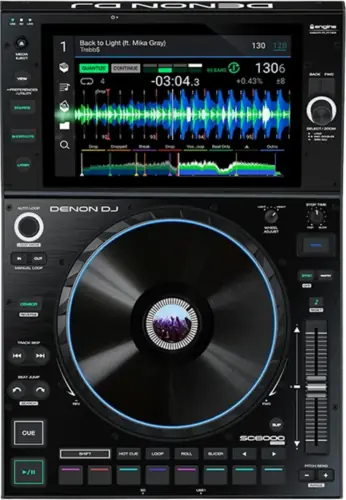
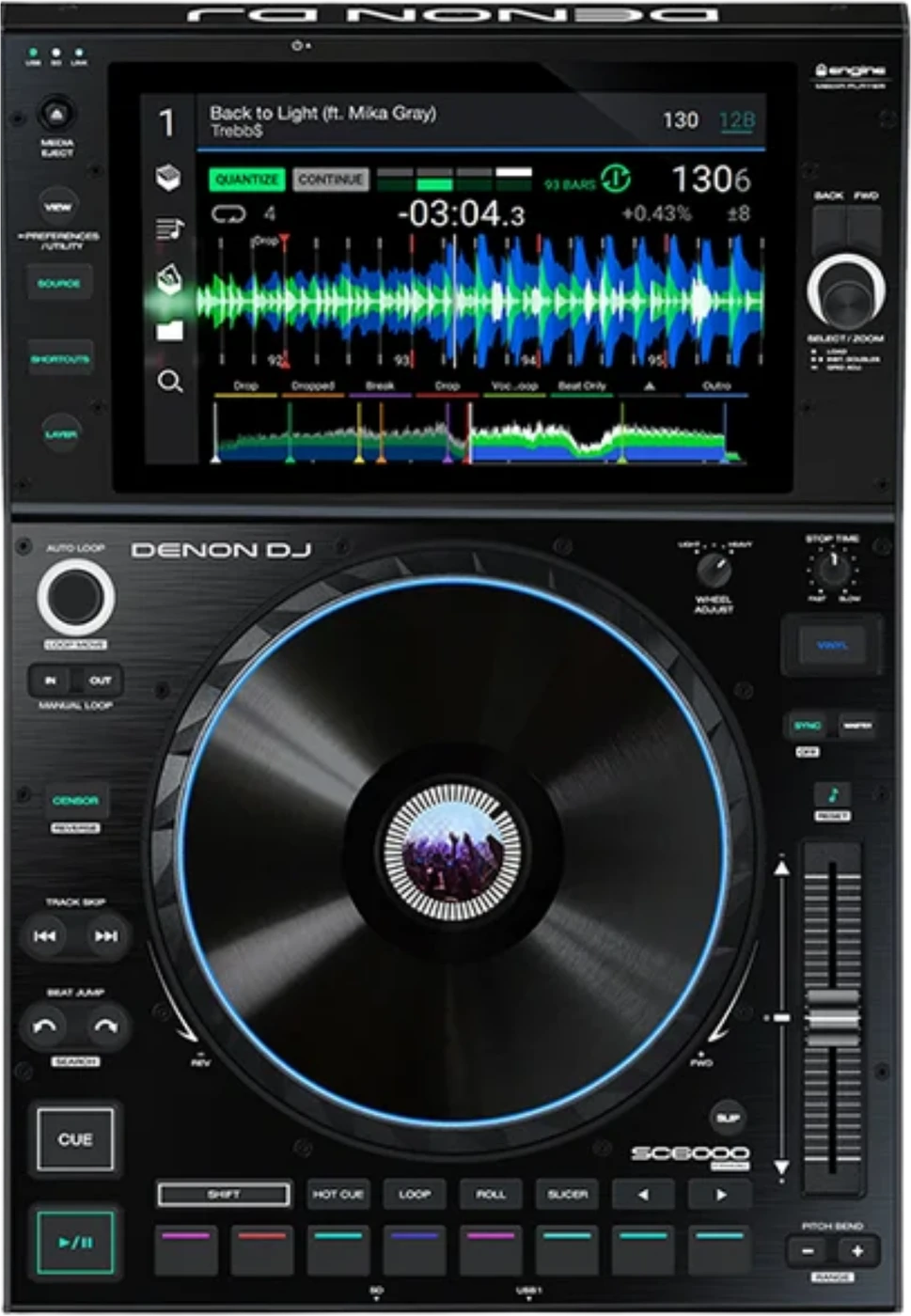
Booth briefing. The SC6000 PRIME is the non-motorised deck in Denon's standalone line. It plays from three USB ports, an SD card slot or an internal SATA bay with no computer in the signal path, and its firmware is Engine OS, the one line shared by the whole PRIME range, with Engine DJ 5.0 the documented release. Supported file systems are exFAT and FAT32, with HFS+ listed in the shared v5.0.0 guide. Against the SC6000M beside it, this deck has the platter display and the brake; the M has the motor.
When it goes wrong: Denon USB format, exFAT or FAT32 The Denon will not read the drive
Fast Lane
The five things that decide your gig
The five things on the SC6000 PRIME that change what happens next, if you are reading this in the booth. All five are explained in full further down this page.
A drive that will not mount is a format question first, and Denon's two guides do not agree on the answer.
The shared v5.0.0 guide lists exFAT, FAT32, HFS+. This model's own v1.7 guide lists exFAT and FAT32 only, and HFS+ for this generation arrived in Engine OS 2.4.0.
Check the format before you suspect the drive or the socket, and remember an older deck can refuse the Mac-formatted drive a newer one reads.
Pull a drive with the Media Eject button, never by hand.
Denon print the procedure and a condition on it: no track on that device may be playing on any networked unit before it comes out.
The deck also carries a protection circuit that ejects all media safely after an unexpected power loss, which is the same problem solved for the case where nobody gets to press anything.
Stems are made on a computer, and Stems mode is a licence that has to be activated first.
Separation happens in Engine DJ Desktop before a track ever reaches the deck. What plays here is an already rendered stem file, packed to the drive.
On this model Stems pad mode does not exist until a licence is added to an Engine DJ profile and the deck has been signed in and rebooted, so a deck that has not had that done shows you nothing.
Firmware here is Engine OS, one line for the whole PRIME range, and the version sits on one named screen.
The documented line is Engine DJ 5.0 with point releases following it, and Denon's own published release notes stop at 5.0.
Read the installed version at Settings, then About / Update. The published Engine OS history is one sequential line for the whole range, with one exception in it: version 1.5.3 is headed "(SC6000 only)" and its single line is "Improved SC6000 platter touch response".
The difference from the SC6000M is the whole platter assembly, not just the motor.
This deck has the platter display, the Vinyl button, the Wheel Adjust brake and a Nudge Sensitivity setting the v5.0.0 guide marks SC6000 PRIME only. The SC6000M has the motor, a Torque Adjust switch, a Motor button and a Motorized Platter Start setting instead, and it arrives with its platter to be fitted.
Same enclosure, same audio figures, same connections, same slots. This deck weighs 5.75 kg against the SC6000M's 7.08 kg.
If something goes wrong
The USB drive will not mount or shows no tracks
Short answer. The SC6000 PRIME is refusing a file system before it is refusing a drive. Denon's newer shared guide lists exFAT, FAT32, HFS+, and in both guides Denon mark exFAT "(recommended)" in the supported file systems line.
Why this happens. A drive formatted on a Windows PC without a second thought is often NTFS, which is not among the file systems Denon documents for this player. A Mac-formatted HFS+ drive is the other common case, and that one depends on the firmware: HFS+ arrived in Engine OS 2.4.0 and this model's own v1.7 guide does not list it at all.
Fix it now. Move the drive to another of the three USB ports, or to the SD card slot, before you assume the drive is at fault. If the format is wrong, reformat to exFAT on another computer and copy the music back on. If no computer is available, borrow a drive that already reads correctly on Engine OS hardware.
Avoid it next time. Format and test every drive on an Engine OS unit before the gig, not at the booth.
The deck has stopped responding
Short answer. The SC6000 PRIME has a documented reset, and it is the rear panel Power Button. Press and hold this button for 10 seconds to reset SC6000 PRIME.
Where the button is. Denon list it as item 2 in the rear panel section of the user guide, beside the power input, and it is the same button that switches the deck on and off. A short press switches the deck off, which is not what you want mid set. The ten seconds is the entire difference between the two actions, so hold it and count.
What Denon do not say. The guide gives the reset and does not give a list of what makes a deck stop responding in the first place. So this page does not offer a cause either. What it can give you is the documented way out and the order to try things in.
Fix it now. Reach round the back, hold the Power Button in for a full ten seconds, and let the deck restart. Only the deck you are holding restarts, so the other players, the mixer and the network stay up.
Before you pull the mains. Try the reset before the wall switch. Denon do build in a protection circuit "to safely eject all media after an unexpected power loss to protect your data from corruption", after which reconnecting the power returns it to normal operation, so a sudden power cut is survivable, but on a rig where several PRIME units and the mixer share one power strip the wall switch is not a per deck option. It takes the whole booth down to recover one deck.
Avoid it next time. Find the Power Button during setup rather than during the problem. It is on the rear panel, out of sight, and on an installed deck it can sit behind a rack panel or a cable loom.
Common mistakes. Killing the power strip, which takes every PRIME unit on the network down with it, when one deck needed ten seconds on its own button.
Taking a drive out safely
Short answer. The SC6000 PRIME has a documented eject procedure and it has a condition attached. Press Media Eject, then tap the Eject icon beside the device name on the touchscreen. Denon ask first that you "make sure none of its tracks are being played on any connected PRIME hardware units", and if one is playing the deck asks whether to continue, which stops the track.
The condition is the part that gets skipped. On a networked rig, a track from your drive can be playing on a different deck entirely, which is exactly the case Denon's wording covers. Check the other players before you touch the drive, not after.
If the power goes instead. The deck has a protection circuit "to safely eject all media after an unexpected power loss to protect your data from corruption", after which reconnecting the power returns it to normal operation. That is Denon designing for the case where nobody gets the chance to press anything, and it is a reason not to panic-pull a drive during a power event.
Avoid it next time. Eject before you unplug, every time, and keep the second copy of the set on a second drive so a corrupt database is an inconvenience rather than the end of the gig.
What to watch for
Firmware and known issues
Short answer. The SC6000 PRIME has no model-specific defect documented anywhere Denon publish. This section will state one plainly the day a genuine, verified fault is published, and will not invent one to fill the space in the meantime.
A dated change history does exist, and it names this model once. Engine OS release notes are published for the PRIME range as one sequential line rather than a per-model matrix. The published Engine OS history is one sequential line for the whole range, with one exception in it: version 1.5.3 is headed "(SC6000 only)" and its single line is "Improved SC6000 platter touch response". So the claim that nothing is ever published per model is not quite true, and that entry is the exception worth knowing.
Where the line stands. Engine DJ 5.0 is the documented line; point releases (5.0.x) ship after it without notes of their own, so the published notes stop at 5.0.
Do this. If you hit a genuine, repeatable fault on a specific firmware version, tell us what happened and we will verify it against official sources and document it here.
Firmware downloads. Official Engine DJ downloads page →
Broken link? Let us know and we'll fix it.
You are not sure which firmware version a venue unit is on
Short answer. The SC6000 PRIME shows it on one named screen: Settings, then About / Update, which is where the deck shows the product name, the firmware version installed on it, and other device information. The documented line is Engine DJ 5.0; point releases (5.0.x) follow it, so anything older than 5.0 is behind the line.
Why this happens. Firmware here is shared across the whole PRIME range, so a venue that updates one Engine OS unit does not necessarily update every unit at the same time, and a rental deck can sit on an older version for a long time without anyone noticing.
Why it can change without anyone deciding to. Engine OS 1.6.1 added over the air updating, so from that version a unit can download and install updates itself over Wi-Fi or Ethernet, and the notes add that OTA updates "require v1.6.0 or higher". So a networked deck on a venue Wi-Fi can be offered an update by itself, which is one more reason to read the version at soundcheck rather than assume it matches the deck beside it.
Fix it now. An older version rarely stops a unit from playing; treat a version mismatch as something to report after the gig, not mid-set. The same screen holds Firmware Update Mode, which restarts the deck in Update Mode so a firmware package can be applied, which is exactly the thing not to touch on gig day.
Avoid it next time. Never update on gig day. Check the version at soundcheck instead, so there are no surprises once the room is full.
Three settings under Safety that look like a broken deck
Short answer. The SC6000 PRIME has three deliberate locks, all of them in the Profile menu under Safety, and each one presents as a hardware fault to somebody who does not know it exists. None of them is a fault. All three are somebody's earlier choice on a deck you did not set up.
The screen ignores a tap on the waveform. Needle Lock, a setting under Profile and Safety that decides whether tapping the track overview jumps the playhead during playback. With it on you can still do it by pausing, or by putting the platter in Vinyl mode, touching the top of the platter and then tapping.
A track will not load onto a deck that is playing. The deck has Lock Playing Deck, which when on requires the deck to be paused before a track can be loaded to it. So a load that does nothing on a running deck is this setting, not a dead Load knob.
The pads and the mode buttons do nothing at all. The deck also has Pad Lock, which disables the pads and the Hot Cue, Loop, Roll and Slicer buttons. A pad section that is completely inert, with the rest of the deck working normally, is the one to suspect first.
Fix it now. All three live in the same place, so one trip answers all three. Open Profile, go to Safety, and read the three settings rather than changing them blind. On a house or rental deck, change back what you turn off, because the next person is expecting the deck as they left it.
Avoid it next time. Read the Safety page at soundcheck on any deck you did not set up yourself. It takes seconds and it removes three separate ways to lose time later, none of which announce themselves on the panel.
Compatibility
Stems, software and what pairs with it
Short answer. The SC6000 PRIME plays stems back, it does not separate them. Track stems must be created using the Engine DJ software and packed to an external drive for use with PRIME hardware. It is commonly run beside an X1850 PRIME mixer.
Stems mode is not on the deck until somebody switches it on. On this hardware Stems is a one-time licence added to an Engine DJ profile, which the user guide requires for every Engine OS unit except the PRIME 4+ and the RANE SYSTEM ONE, where it says Stems "is automatically available". Where the licence does apply, the deck then needs Wi-Fi, that profile signed in, and a reboot before Stems pad mode appears. A deck that has never had that done gives you Hot Cue mode twice and no explanation.
Why it matters. Denon markets stems as "the industry's first standalone Stem separation," which reads as real-time on-device processing to a DJ who has not read the FAQ. In a booth, assume a track needs its stems rendered on a computer before the gig, not during it.
A computer is optional, never required. The deck plays standalone from its own media. Denon also document an Engine Remote Library, which browses and loads from Engine DJ running on a computer on the same network, with tracks up to 250 MB. That is a convenience, not a dependency.
Which drives and formats it reads
Short answer. The SC6000 PRIME reads exFAT, FAT32, HFS+ according to Denon's newer shared guide, and HFS+ for this generation specifically was added in Engine OS 2.4.0.
The two guides do not agree, and the difference is operational. The two published guides do not agree. The model-specific v1.7 guide lists "exFAT (recommended), FAT32" and nothing else. The newer shared v5.0.0 guide lists "exFAT (recommended), FAT32, HFS+ (SC6000/SC6000M PRIME only)". HFS+ is a later addition, so an older deck can refuse a Mac-formatted drive that a newer one reads.
One of the three is preferred. In both guides Denon mark exFAT "(recommended)" in the supported file systems line, so exFAT is the default this page recommends too, with FAT32 as the fallback a smaller or older drive may already be on.
What it will actually play. The formats listed in both guides are AAC/M4A, AIF/AIFF, ALAC, FLAC, MP3, MP4, Ogg Vorbis and WAV, with AIF/AIFF and WAV documented at 44.1 to 192 kHz and 16 to 32 bit, and MP3 at 32 to 320 kbps.
Why the NTFS question keeps coming back. A separate, general Engine DJ drive-setup guide lists NTFS (Windows only) as compatible for drives used with the Engine DJ software. Neither user guide for this player lists it, and neither does the Engine DJ software guide, which recommends exFAT and says FAT32 is also supported. If NTFS matters to your workflow, test it on the actual unit before the gig.
What each slot takes
Short answer. The SC6000 PRIME has three USB Type-A ports, one on the front and two on the rear, an SD card slot on the front, and an internal 2.5 inch SATA bay.
The three USB ports are not equal. Denon publish the figures: the rear ports supply 900 mA for USB 3.0 devices and 500 mA for USB 2.0, and the front port supplies 500 mA for USB 2.0 devices only. A bus-powered SSD that browns out on the front port may behave on the rear.
The card slot. The v5.0.0 specification lists SD, SDHC and SDXC cards as playable media, which is a real second drive when a USB port is occupied or damaged.
The bay in the bottom. The deck takes nearly any standard 2.5 inch SATA drive, solid state or hard disk, and Denon require that it "uses (or can use) the exFAT or FAT32 file systems". That last clause is the one people miss: the internal drive does not get the HFS+ option the USB ports have.
Why it matters. A deck with a dead USB port is not a dead deck. There are two more USB ports, a card slot and, on a lot of installed units, an internal drive already holding a library.
Features explained
The platter display, and what the SC6000M has instead
Short answer. The SC6000 PRIME carries a full colour LED-backlit display in the centre of the platter, which the SC6000M does not have at all: the v5.0.0 guide heads that whole section "Platter Display Overview (SC6000/SC5000 PRIME only)".
What it shows. It shows the playhead position and the album artwork all the time, and, for a moment each, the auto loop size after you turn the Auto Loop knob, the beat jump size, the layer after you press Layer, the second playhead while Slip is on, and the track end warning.
How big it is, and why that is not a simple answer. Denon publish two sizes for it. The model-specific v1.7 guide gives the platter display as 3.5 inch, 89 mm across, and the newer shared v5.0.0 guide gives it as 2.2 inch, 56 mm across, in a row that covers the SC6000 and the SC5000 together. This page prints both rather than picking one.
The track end warning is a setting, not a fixed timer. The v5.0.0 guide says the platter display shows the track end warning when 30 seconds of playback remain, and the same guide makes Track End Warning a setting under Profile and Display that decides how long before the end of a track the deck warns you. So 30 seconds is what the guide prints, not a fixed timer.
Why it matters. Same enclosure, same audio figures, same connections and same media slots as the SC6000M, at 5.75 kg against that deck's 7.08 kg. What actually differs is the whole platter assembly: this deck has the platter display, the Vinyl button, the Wheel Adjust brake and a Nudge Sensitivity setting the v5.0.0 guide marks SC6000 PRIME only. The SC6000M has the motor, a Torque Adjust switch, a Motor button and a Motorized Platter Start setting instead, and it arrives with its platter to be fitted.
The platter, the brake and the vinyl button
Short answer. The SC6000 PRIME has an 8.5 inch metal platter, capacitive and touch sensitive, which Denon describe as controlling "the audio playhead when the wheel is touched and moved".
The brake nobody finds in the dark. Beside it sits a Wheel Adjust knob that, in Denon's words, "applies a brake to the platter to prevent unintentional drifting due to environmental vibrations from bass frequencies, surface instability, etc." Turn it up on a stage where the bass is moving the table and the platter stops drifting under its own weight; turn it down and the platter is loose again.
Two states, and the button that picks one. The deck has a Vinyl button: with Vinyl lit the platter scratches, and with it off, or with only the side of the platter touched, the platter nudges the speed instead. There is also a Stop Time knob, which sets the rate at which the track slows to a complete stop when Play/Pause is pressed, and a Nudge Sensitivity setting of Min, Low, Mid, High or Max that the v5.0.0 guide marks SC6000 PRIME only.
When professionals deal with it. A borrowed or rented deck arrives with all three of those wherever the last DJ left them, and none of the three announces itself. Check Vinyl, the Wheel Adjust brake and Stop Time at soundcheck, in that order.
The two layers, and what they share
Short answer. The SC6000 PRIME is two players in one box: Layer A and Layer B, each with its own RCA output pair and its own coaxial digital output, so the two layers reach the mixer on separate channels.
What is shared and what is not. One touchscreen, one platter and one set of transport controls serve whichever layer is in focus, so the Layer button decides what the hardware is driving. Double-pressing the Select/Load knob loads the same track to both layers, which Denon call instant doubles.
The setting that makes a working deck look wrong. The deck has a Deck Swap setting of Regular or Swapped, which decides whether Layer A leaves by the A output or the B output, and Layer B can be switched off under Layout and Deck Behavior, which disables the Layer button, though Denon note the hidden layer can still "route preview, sampler, or Bluetooth audio". A deck handed to you with Layer B off has a dead Layer button, and that is a menu setting rather than a fault.
Sync, and the one control that stops responding. Denon put this in bold in both guides. If Sync is activated, moving the pitch fader on the "primary" SC6000 PRIME unit will change the speed of all synced units, while moving the pitch fader on other units will do nothing. So a pitch fader that does nothing is usually a synced deck that is not the sync lead, and if you stop the sync lead unit, Denon say "the next-longest-playing unit in the setup will automatically become the new sync lead" unless you change it by hand.
Cue points and loops, as Denon document them
Short answer. The SC6000 PRIME has one initial cue point per layer plus eight hot cue pads, and the Cue button behaves in a way worth knowing before you lean on it. Cue during playback returns the track to the initial cue point and stops. Held on a paused deck it plays from the cue point and drops back to it when released. To keep playing from there, hold Cue, then hold Play, then release both.
Setting and moving the initial cue. While the track plays, hold Shift and press Cue to set it at the playhead. While it is paused, move the platter to the spot and press Cue. The v5.0.0 guide gives both; the older v1.7 guide gives only the paused method.
Loops. The deck offers auto loops of 1/32, 1/16, 1/8, 1/4, 1/2, 1, 2, 4, 8, 16, 32 or 64 beats on the Auto Loop knob, plus Loop In and Loop Out for a manual loop. Denon note that where a loop point lands is affected by the Quantize and Smart Loops settings, so a loop that refuses to sit where you put it is a setting rather than a slip.
Three settings can make the deck ignore you. Needle Lock, Lock Playing Deck and Pad Lock all sit in Profile under Safety, and all three read as a hardware fault. They have their own section: three settings under Safety that look like a broken deck.
Professional tips
Before you play on one
The SC6000 PRIME has no motor, so do not build a routine around a platter that moves. What sits in that space instead is the full colour LED-backlit display in the centre of the platter, so if a rider says SC6000 and your set leans on platter feel, that is a load-in conversation rather than a discovery at the deck.
Set the Wheel Adjust brake before you set anything else. It is a Wheel Adjust knob that, in Denon's words, "applies a brake to the platter to prevent unintentional drifting due to environmental vibrations from bass frequencies, surface instability, etc." On a stage where the low end moves the table, a loose platter drifts on its own and every nudge you make afterwards is fighting it.
Only format a drive HFS+ if every unit you will touch is on Engine OS 2.4.0 or above. This model's own v1.7 guide does not list HFS+ at all, so a drive prepared on a Mac is fine on a recent deck and refused on an older one, and nothing about the drive tells you which you are standing at.
Carry the set on two kinds of media, not two USB sticks. The deck has three USB Type-A ports, one on the front and two on the rear, an SD card slot on the front, and an internal 2.5 inch SATA bay, and a dead USB port or a bent connector stops being a crisis the moment the same library is also on an SD card.
Eject with the button, and check the other decks first. Press Media Eject, then tap the Eject icon beside the device name on the touchscreen. Denon ask first that you "make sure none of its tracks are being played on any connected PRIME hardware units", and if one is playing the deck asks whether to continue, which stops the track. On a linked rig your drive can be feeding a player you are not standing at.
Read the Engine OS version at soundcheck and leave it alone. It is at Settings, then About / Update, which is where the deck shows the product name, the firmware version installed on it, and other device information. Firmware here is one line for the whole PRIME range, so a venue that updated one unit has not necessarily updated the one you are on, and gig day is not when you find that out.
When something is odd, suspect the media before the deck. No model-specific defect is documented for this player at all, so the useful order is the file system, then the slot, then the drive itself, then the Engine OS version, and only then the hardware.
Connections and setup
What comes out of the back
Short answer. The SC6000 PRIME has two RCA output pairs, one per layer, two coaxial digital outputs at 24 bit and 96 kHz, a 3.5 mm mini TS remote start input, a USB Type-B port for MIDI to a computer, one Ethernet Link port, and an IEC power inlet with a locking connector.
Analogue and digital are both there, per layer. Denon describe the digital pair as 24 bit and 96 kHz outputs for "devices and mixers such as the Denon DJ X1850 PRIME". A booth wired on coaxial digital and a booth wired on RCA are both normal, and the deck does not care which you use.
The remote start input is an input, not an output. With a remote-start-compatible mixer connected, Denon say moving the crossfader toward this deck's side, or raising its channel fader, "will automatically start the track on the currently selected layer". A deck that starts on its own is that cable, not a fault.
The USB Type-B port is not for a drive. It goes to a computer and, in Denon's words, "sends and receives MIDI messages to and from the computer". Nothing about standalone playback needs it.
Physical measurements. The deck is 32.0 x 46.2 x 15.2 cm, width by depth by height, the same enclosure as the SC6000M, and it weighs 5.75 kg.
Linking players together
Short answer. The SC6000 PRIME networks over one Ethernet Link port with up to four PRIME units, which then share track databases, timing and BPM information and other data, so one deck can browse and play whatever is plugged into any of them.
How it has to be wired. Two units go Link port to Link port with the included networking cable. More than two go to Link ports 1 to 4 on a Denon DJ mixer, or to an Ethernet port on a router, and Denon are explicit that with a mixer of another make you connect all four to an Ethernet hub instead. The Link light comes on when a unit is properly on the network.
The number in the corner sorts itself out, usually. On this deck the player number is assigned automatically on a network with a Denon DJ X1800 or X1850 PRIME mixer, and it can be overridden by hand under Settings and Device. Two decks fighting over the same player number is that setting, and it is fixable from the screen.
Why it matters. A four-deck rig where one player cannot see the others is almost always the cable path, not the deck: a third-party mixer in the middle of it needs an Ethernet hub instead, and the guide says so in as many words.
Powering it up, and the order Denon insist on
Short answer. The SC6000 PRIME has a printed power order in both guides, and it is a prohibition rather than a suggestion. Power on SC6000 PRIME only after you have connected all of your input devices and before you power on your amplifiers and loudspeakers. Power off your amplifiers and loudspeakers before powering off SC6000 PRIME.
The whole session, in order. Denon's own sequence is to power on the players and other input sources first, then the mixer, then the output devices, and power everything down in the reverse order.
The cable locks. The deck ships with a locking IEC cable, and Denon's instruction for getting it out again is to push down on the yellow tab and then pull the cable out of the input. A standard IEC cable can be used in its place, which is worth knowing when the locking one has walked off with the last rental.
If it stops responding. There is a documented reset on the rear panel Power Button, and it has its own section: the deck has stopped responding.
Safety
Heat, ventilation and the warnings Denon print
Short answer. The SC6000 PRIME watches its own temperature and says so. The v5.0.0 guide documents an overheat warning in the toolbar if the unit "rises above normal operating temperatures". Denon ask for enough space around the unit for ventilation, and say that if overheating persists, shut the unit down and let it cool "to prevent damage".
What that means for a booth. Two decks stacked in a flight case with a mixer between them, in an unventilated DJ booth, is the situation that warning exists for. Leave the air path clear and give the toolbar a glance during a long set.
The screen dimming is not a fault. The deck has a Screen Saver Time setting of Off, 15, 30 or 60 minutes. It dims the touchscreen after that much inactivity, any screen touch or hardware control brings it back, and Off means it never dims.
Radio separation. Both guides print the same RF warning for the built-in wireless: maintain a distance of at least 8 inches, 20 centimetres, between the transmitter and your body or other people nearby.
Locking it down. The rear panel carries a Kensington lock slot, which Denon document as being there to "secure SC6000 PRIME to a table or other surface".
Firmware, drivers and manuals
Official downloads and documents
Go to Denon DJ for the files themselves. We link their pages instead of hosting a copy, because a manual copied here is a snapshot of release day and theirs is the one that stays current.
Manuals. Official Denon DJ manual page →
Broken link? Let us know and we'll fix it.
Frequently asked questions
Quick answers
- What file systems does it read?
- The shared v5.0.0 guide lists exFAT, FAT32, HFS+. This model's own v1.7 guide lists exFAT and FAT32 only, and HFS+ was added for this generation in Engine OS 2.4.0.
- What file formats does it play?
- AAC/M4A, AIF/AIFF, ALAC, FLAC, MP3, MP4, Ogg Vorbis and WAV, with AIF/AIFF and WAV documented at 44.1 to 192 kHz and 16 to 32 bit, and MP3 at 32 to 320 kbps.
- What can I put a library on?
- It has three USB Type-A ports, one on the front and two on the rear, an SD card slot on the front, and an internal 2.5 inch SATA bay.
- How do I take a drive out?
- Press Media Eject, then tap the Eject icon beside the device name on the touchscreen. Denon ask first that you "make sure none of its tracks are being played on any connected PRIME hardware units", and if one is playing the deck asks whether to continue, which stops the track.
- Where is the firmware version?
- At Settings, then About / Update, which is where the deck shows the product name, the firmware version installed on it, and other device information.
- Does it have a motorised platter?
- No, that is the SC6000M. This deck has a full colour LED-backlit display in the centre of the platter, a Vinyl button and a Wheel Adjust brake instead.
- Can it render stems on its own?
- No. Stems are rendered in Engine DJ Desktop and packed to the drive, then played back on the unit, and Stems pad mode needs a licence activated on the deck first.
- How many players can I link?
- You can network up to four PRIME units, which then share track databases, timing and BPM information and other data, so one deck can browse and play whatever is plugged into any of them.
- Why is the pitch fader doing nothing?
- If Sync is activated, moving the pitch fader on the "primary" SC6000 PRIME unit will change the speed of all synced units, while moving the pitch fader on other units will do nothing.
- Is firmware shared with other Denon units?
- Yes, Engine OS runs the whole PRIME range on one firmware line rather than a per-model matrix.
Where this sits in the line
- Previous generation SC5000 PRIME
- Motorised version SC6000M PRIME
Commonly paired with
What you usually find beside it in working booths, from club, festival and rental installs rather than from a manufacturer document.
Playing soon and it is not working?
Start Emergency ModeKeep the Emergency Card
We will email you the printable PDF so it is on your phone before the next dark booth. Occasional notes that save gigs. No spam, unsubscribe in one click.
Registering is free and counts everywhere on Save My Gig. We send a confirmation email first. Your address is stored with Brevo, our email provider. Unsubscribe any time. Privacy
Sources: Denon DJ's SC6000 PRIME User Guide v1.7, the shared SC6000, SC6000M, SC5000, SC5000M PRIME User Guide v5.0.0, the Engine DJ User Guide v5.0.0, the published Engine OS release note history, and Engine DJ's official downloads and support pages, checked 31 August 2026. Specifications theirs, priorities ours.