

MacBook Pro, the field manual
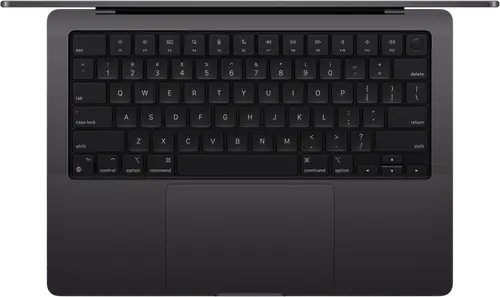
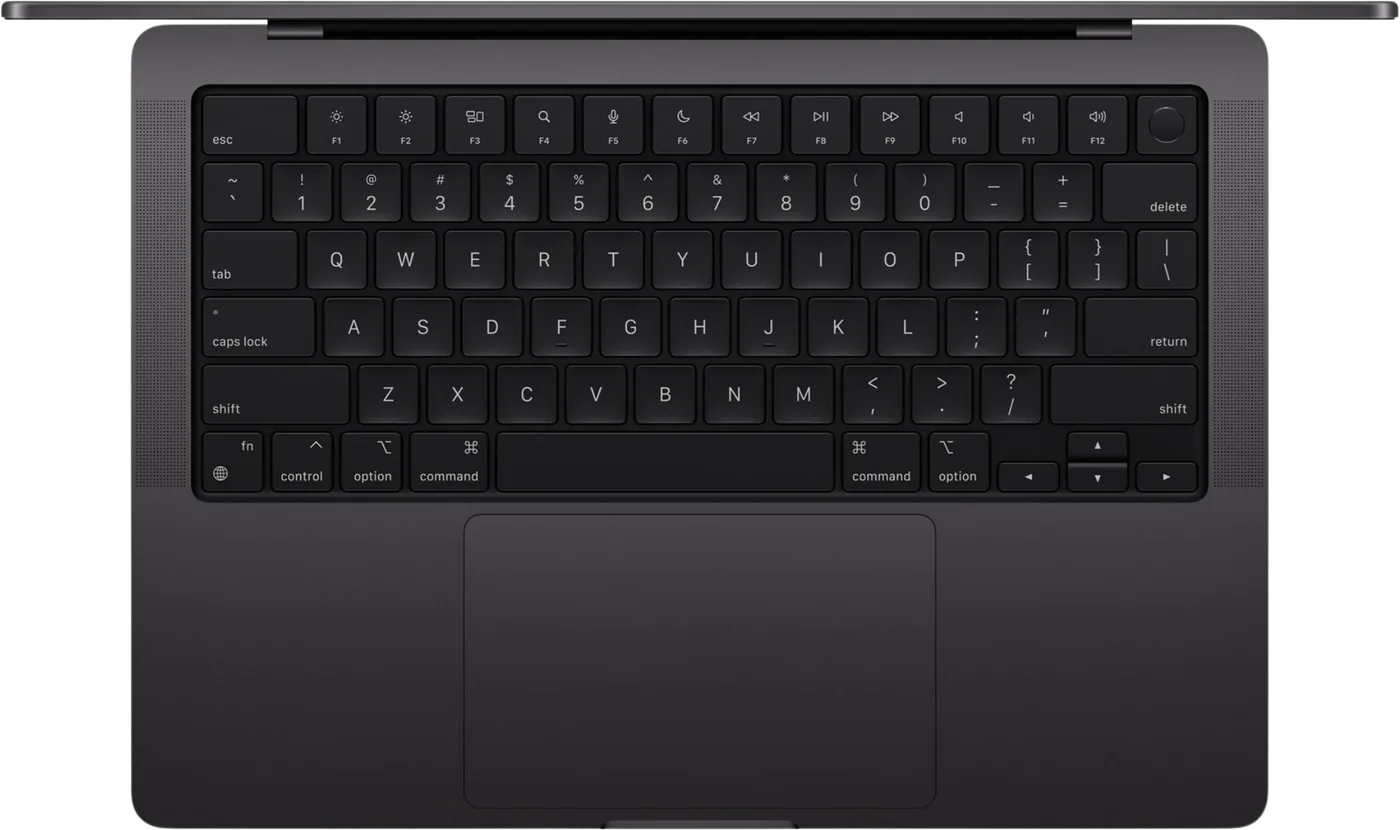
Booth briefing. The reference laptop for a DJ booth. The MacBook Pro comes in 14-inch and 16-inch sizes on Apple’s M-series chips, with more ports than the Air (three USB-C, HDMI, an SD slot, still no USB-A), a bigger battery and sustained performance under load. The MacBook Air is its lighter version: fewer ports, less stamina, the same DJ software running the same way. Buy any M-series generation, M1 onward; Apple’s own macOS 27 list carries every one of them and no Intel Mac. On memory and storage, treat 16 GB and 512 GB as the floor, not the target: our floor, not Apple’s. Less runs, with little margin. More is always better, so if you can reach 24 GB or 1 TB, take it.
Fast Lane
The five things that decide your gig
The five things about the MacBook Pro that change what happens next, if you are reading this in the booth. All five are explained in full further down this page.
Three USB-C, HDMI, SD. Still no USB-A.
A controller, a drive and a charger fit with a port to spare, and HDMI drives a venue screen. The CDJ stick and older controller cables still need a C-to-A adapter, tested at home.
The week of a gig is not update week.
A macOS update the day before a gig is a version at least one DJ vendor says not to install. Turn automatic updates off on the gig machine.
A macOS update resets permissions, and the controller vanishes.
Files and folders, microphone, local network. AlphaTheta publish a notice about exactly this for rekordbox; it applies to every DJ application.
Pro and Max chips buy sustained load, not a more reliable controller.
A DJ application runs on the base M chip of any generation. The bigger chips are for the DJ who also produces, edits video or runs stems and visuals from the same machine.
Apple silicon only. Apple’s macOS 27 list says why.
Every Pro from the M1 onward is on Apple’s macOS 27 list and no Intel Mac is. Vendor support follows the operating system.
If something goes wrong
The software does not see the controller after a macOS update
Short answer. A macOS update resets permissions, and DJ software needs several: files and folders, microphone, and on macOS 26 and later, finding devices on the local network. AlphaTheta publish a notice saying exactly this for rekordbox, with a PDF per macOS version, and it applies in spirit to every DJ application. A prompt you dismissed in a hurry is the silent reason the controller that worked last week is not seen this week.
Fix it now. System Settings, Privacy and Security: check Files and Folders, Microphone, and Local Network for the DJ application. Then restart the MacBook Pro, not just the application. If a driver was updated, AlphaTheta say to restart after installing it.
Avoid it next time. Never update macOS in the week of a gig. The OS compatibility page says what each vendor has said about each version.
Audio dropouts or crackle mid-set
Short answer. On a MacBook Pro the usual causes are, in order: the machine on battery with a power-saving mode active, a hub between the controller and the port, Wi-Fi and Bluetooth left on with a streaming or sync service in the background, and a full internal drive. None of them is the controller.
Fix it now. Plug the charger in. Move the controller to a port directly on the machine. Turn Wi-Fi and Bluetooth off unless the set streams. Quit everything that is not the DJ application.
What to watch for
The week of a gig is not update week
Short answer. Apple ship a major macOS every autumn and point releases through the year, and every DJ vendor answers on its own page, weeks or months later. A MacBook Pro that offers you macOS 27 the day before a gig is offering you a version at least one vendor says not to install. The OS compatibility page holds each vendor’s statement, per version, in their words.
What to do. System Settings, General, Software Update: turn automatic macOS updates off on the gig machine. Update between gigs, after your vendor’s row turns green, and test with the controller you will play on.
Memory and storage are decided at the checkout and never again
Short answer. On every Apple silicon MacBook Pro the memory is part of the chip and the storage is soldered. Apple offer from 16 GB on the M5, 24 GB on the M5 Pro and 36 GB on the M5 Max, configurable up to 128 GB and from 512 GB on the 14-inch M5 and 1 TB on the Pro and Max, configurable up to 8 TB, and whatever you pick is what the machine has for its whole life.
Our advice, not Apple’s. 16 GB of memory and 512 GB of storage as the floor for a gig machine, not the target. Memory, because the DJ application, its analysis, the operating system and whatever else is open all share it and a machine that swaps to disk mid-set is a machine that stutters. Storage, because the library grows, macOS grows, recordings of sets are large, and a nearly full SSD slows down. Apple’s base MacBook Pro today meets that floor. Above it is always better; what decides how far you go is the library, not us.
Compatibility
Apple silicon only, M1 and beyond
Short answer. Apple’s own compatibility page for macOS 27 lists every MacBook Pro from the M1 model onward and no Intel Mac at all, and says plainly that a Mac with Apple silicon can upgrade to macOS 27. An Intel MacBook Pro stops at macOS 26, and every DJ vendor’s support follows the operating system. That is the whole reason this site draws the line at M1: not speed, longevity.
The vendors. Whether a given DJ application runs on a given macOS is the vendor’s statement, not Apple’s and not ours. The OS compatibility page holds those statements side by side for rekordbox, Serato, Engine DJ, TRAKTOR, VirtualDJ and djay; the Serato, Engine DJ and TRAKTOR pages carry each vendor’s system requirements.
The models Apple list for macOS 27. MacBook Pro (13-inch, M1, 2020), the 14-inch and 16-inch models of 2021, 2023 and 2024, MacBook Pro (13-inch, M2, 2022), the 14-inch M5 (2025), and the 14-inch and 16-inch M5 Pro or M5 Max (2026). Every one of them is an M-series machine and every one is advised; the 13-inch M1 and M2 models are the older two-port chassis, closer to an Air in ports.
Our advice inside that rule. Buy the most recent M generation you can, not merely "an M chip". An older Mac is not a bad machine; it is a machine with a shorter macOS support window, and every DJ vendor's support follows macOS. Intel is the finished example: it is off Apple's macOS 27 list, so an Intel Mac now sits on a version vendors stop testing against, while driver and firmware updates arrive for versions it cannot run. Every generation you buy back from the current one brings that day closer. The M1 still works and is still on Apple's list; it is simply nearer the end of that road than an M4 or an M5.
Features explained
What Apple publish, and what matters in a booth
- Chip
- Apple M5 on the 14-inch; M5 Pro or M5 Max on the 14-inch and the 16-inch
- Memory
- from 16 GB on the M5, 24 GB on the M5 Pro and 36 GB on the M5 Max, configurable up to 128 GB
- Storage
- from 512 GB on the 14-inch M5 and 1 TB on the Pro and Max, configurable up to 8 TB
- Ports
- three Thunderbolt (USB-C), HDMI, an SDXC card slot, MagSafe 3 for charging and a 3.5 mm headphone jack. No USB-A
- Display
- 14.2-inch or 16.2-inch Liquid Retina XDR
- Weight
- from 1.55 kg (14-inch M5) to 2.14 kg (16-inch), per Apple’s figures of 3.4 lb and 4.7 lb
- Battery, Apple’s claim
- up to 24 hours of video streaming on the 14-inch M5 and the 16-inch M5 Pro
Two sizes and three chips, and the honest booth summary is that the difference between them is ports and sustained load, not whether a DJ application runs. The 14-inch with the base M chip of any generation is the booth machine; the Pro and Max chips are for the DJ who also produces, edits video or runs stems and visuals from the same machine.
Professional tips
Decisions to make before the laptop goes in the bag
A gig account. A second macOS user with nothing in it but the DJ application, the library and no cloud sync. Log into it for the set. Notifications, Time Machine, photo sync and mail cannot interrupt what is not running.
Automatic updates off, on this machine. Update between gigs, after the vendor says so.
The charger goes to the gig. Play on mains, with power-saving off. Apple claim up to 24 hours of video streaming on the longest-running models; a DJ application driving a controller is not video streaming, and a set is not the place to measure the difference.
The port question, answered at home. Three USB-C ports plus HDMI, SD and MagSafe. A controller, a drive and a charger all fit with a port to spare, and HDMI feeds a venue screen without an adapter. What it still does not have is USB-A: the CDJ-style stick and most older controller cables need a C-to-A adapter, tested at home.
Keep a fifth of the disk free. A nearly full SSD is slower, and macOS needs room to work.
Firmware, drivers and manuals
Where the maker keeps the rest
- Apple, MacBook Pro tech specs
- Apple Support, MacBook Pro 14-inch M5 tech specs
- Apple Support, MacBook Pro 14-inch M5 Pro or M5 Max tech specs
- Apple Support, MacBook Pro 16-inch M5 Pro or M5 Max tech specs
- Apple Support, identify your MacBook Pro model
- Apple, macOS 27 Golden Gate is compatible with these computers
Frequently asked questions
Quick answers
- Pro or Air for DJing?
- A DJ application runs the same on both. The Pro is for the DJ who needs the third port, HDMI, the SD slot, or sustained load from production, video or stems. The Air is lighter and enough for a controller and a drive.
- 14-inch or 16-inch?
- The 16-inch is the same port layout with a bigger screen, a bigger battery and about 600 grams more, and it comes only with the M5 Pro and M5 Max chips, per Apple. For a booth, the 14-inch.
- Do I need a Pro or Max chip?
- Not for DJing. A 14-inch with the base M chip, 16 GB and 512 GB meets the base this site advises, in any generation from M1 on. The bigger chips and memory are for production work on the same machine.
- What about an Intel MacBook Pro?
- Apple’s macOS 27 compatibility list has no Intel Mac on it. An Intel Pro stops at macOS 26, and every DJ vendor’s support follows the operating system. It is not a machine to buy for DJing.
Related products
Playing soon and it is not working?
Start Emergency ModeKeep the Emergency Card
We will email you the printable PDF so it is on your phone before the next dark booth. Occasional notes that save gigs. No spam, unsubscribe in one click.
Registering is free and counts everywhere on Save My Gig. We send a confirmation email first. Your address is stored with Brevo, our email provider. Unsubscribe any time. Privacy
Sources: Apple’s MacBook Pro tech specs, Apple Support’s tech specs for the 14-inch M5, the 14-inch M5 Pro or M5 Max and the 16-inch M5 Pro or M5 Max, and Apple’s macOS 27 compatibility page, read 19 September 2026. Specifications theirs, priorities ours.