
rekordbox, the field manual
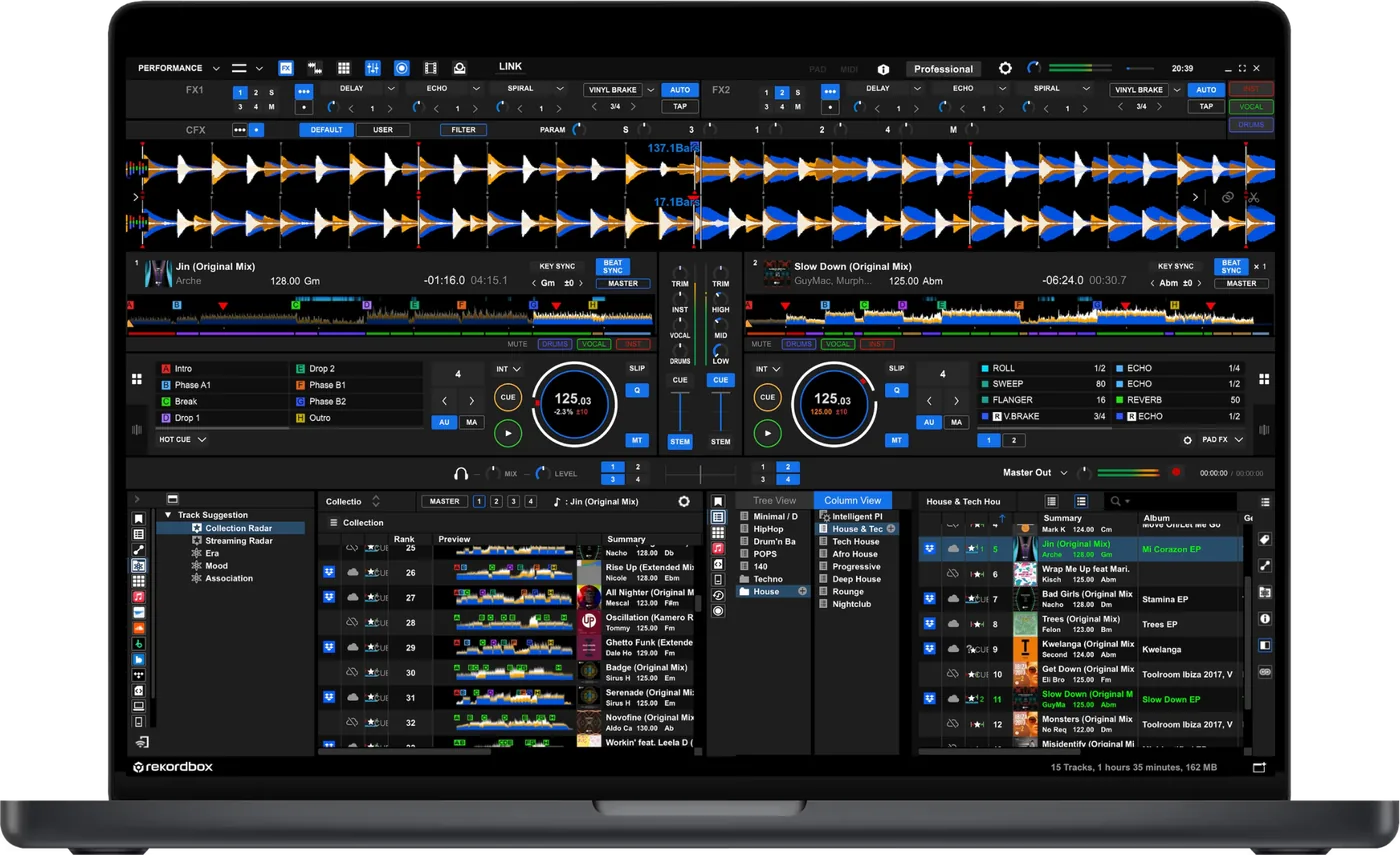
Booth briefing. rekordbox is the AlphaTheta software that prepares the USB drives Pioneer and AlphaTheta players read, old and new, and this article is about the export side of it. Two library formats exist on a drive, Device Library and OneLibrary, and which one a player understands decides whether your playlists appear when the drive mounts on a CDJ. A drive formatted FAT32 with an MBR partition scheme and exported from rekordbox 7.2.13 or later is readable by every player in this article. The compatibility table and the export settings below cover which player reads which format.
Understanding rekordbox
What are OneLibrary and Device Library?
Short answer. Both are the index rekordbox writes to your drive so a player can show your playlists, cues, grids and artwork without a computer. They are two different formats, and a player reads one or the other.
Why this exists. OneLibrary was introduced in rekordbox 6.6.11 (March 2023), originally for the OPUS-QUAD, and it is the format OneLibrary players expect (CDJ-3000X, CDJ-1500X, OPUS-QUAD, OMNIS-DUO, XDJ-AZ, XDJ-AN). Device Library is what everything before it reads.
The trap is that the split does not follow the age of the gear the way you would expect. The CDJ-3000 is a Device Library player. The CDJ-3000X is a OneLibrary player. Two decks with nearly the same name, in the same booth, reading different formats.
Avoid the trap. Stop trying to remember which player reads which. Keep rekordbox at 7.2.13 or later, and convert each drive once: right-click OneLibrary on the device and choose Convert from Device Library, the step AlphaTheta's OneLibrary Compatible USB Device Export guide requires. After that every export carries both formats on the same drive, so it stops mattering.
How rekordbox exports actually work
Short answer. A CDJ reads a real database, cues, grids, playlists, that rekordbox writes only when you transfer tracks and playlists to the device from inside rekordbox. Copying audio files onto the drive in Finder or File Explorer does not create one.
Why this matters. CDJs can still play plain audio files from a FAT32 drive with no database at all, in the FOLDER view, that is the core of our critical-path rescue. But Sync, Quantize, hot cues, grids and playlists all come from the database, and the only way to write it is Export.
Do this. Build your playlists in rekordbox, switch to EXPORT mode, and drag a playlist onto the drive under Devices. The manual describes what that writes: "The playlist and the tracks contained in it are transferred to the USB storage device." Then remove the drive from inside rekordbox rather than from the operating system, because on some gear the library is written at that moment: "For some DJ equipment, when tracks are transferred to the USB storage device, an exclusive library ([Collection] or [Playlist]) is created on the USB storage device when it is removed."
Two habits follow from that. Do not pull the drive while the transfer bar is still moving, which the manual states outright: "The USB storage device must not be disconnected while the data is transferring." And do not let the operating system be the thing that ejects it.
Avoid it next time. Re-export after every library change. An old export is a corrupt export waiting to happen, because everything you changed since the last export exists only in rekordbox until you export again.
EXPORT mode, PERFORMANCE mode, and what a plan unlocks
Short answer. rekordbox is two programs behind one switch, in the upper-left of the screen. EXPORT mode is where you prepare a drive for a CDJ or XDJ. PERFORMANCE mode is the one you mix on.
Why this matters. AlphaTheta describe EXPORT mode like this: "When using the CDJ/XDJ series, rekordbox supports DJ performances which use waveforms, cues, loops, beat sync, etc. by analyzing music files before starting." And PERFORMANCE mode like this: "Use the PERFORMANCE mode for DJ mix performance on rekordbox. You can enjoy professional DJ performances with up to 4 decks, 16 samplers, and various features including the effect function." If a club deck is going to read your drive, EXPORT mode is where that work is documented, and it is also where the per-device settings the player displays are set.
What a plan changes. Which functions you get depends on the plan on your account, and AlphaTheta keep that list on their own site rather than in the manual: "Depending on your subscription plan and DJ equipment connected to your computer, some functions may not be available." PERFORMANCE mode marks a function your plan does not include with its own icon, labelled "Invalid function on your subscription plan".
A plan is not the only key. Connecting supported DJ equipment unlocks functions on its own, which is the part most DJs miss: "Depending on the DJ equipment, when you connect the DJ equipment to your computer on which rekordbox is installed, you can use limited functions, such as recording in the PERFORMANCE mode and the DVS function, without signing up a subscription plan." There is a trial as well, and it is one-time only: "TRIAL can only be used once." One warning for anyone with older gear in the flight case: a rekordbox dj License Card supplied with DJ equipment released on 2019 or earlier cannot be used.
Cues you set on the player, and how to get them back
Short answer. What you change on the deck during the set is written to the drive, not to your library. One command brings it back: Update Collection.
Why this matters. Plug the drive back in, re-export over it and carry on, and that work stays on a stick you will eventually reformat. The manual lists what rekordbox can pull back: Cue Points and Loop Points, Hot Cues, Beat Grids, and other information such as colors, ratings and comments.
Do this. Connect the drive you played from, right-click it under Devices, and choose Update Collection. Play history is separate and arrives on its own: connect the drive and, in AlphaTheta's words, "A play history of tracks in the device is automatically saved on rekordbox", filed in the Histories folder under the date it was saved. If nothing arrives, that automatic import is a preference and it can be switched off, at Preferences, then DJ System, Device, History, Import the play history automatically.
Avoid it next time. Run it before you rebuild the drive, while the drive still holds the set you just played. And do not expect every deck to hand back the same amount, because the manual does not promise it: "Depending on the DJ player, updated information may differ."
USB & library preparation
Is FAT32 really limited to 32GB?
Short answer. No, and this myth costs DJs money. FAT32 supports volumes up to 2TB. The 32GB ceiling you have run into is a limit in Windows' own formatting dialog, not in the file system.
Why the myth exists. Windows will not let you format a drive larger than 32GB as FAT32 through its normal Format dialog, so people assume the file system itself has that ceiling. It does not.
Fix it now. On Windows you can format a larger drive to FAT32 with a free tool such as fat32format or its graphical version guiformat (both from Ridgecrop Consultants). On a Mac, use Disk Utility: choose MS-DOS (FAT) with a Master Boot Record scheme, and if it refuses a very large drive, guiformat on any Windows machine finishes the job.
Avoid it next time. The FAT32 limit that matters is 4GB per file. A 320kbps MP3 is around 9MB and even a long uncompressed WAV rarely passes 1GB, so for a music library it never comes up. There are other ceilings, the 2TB volume limit above and the per-model file and folder counts AlphaTheta publishes in support article 4406512510105, but a gig drive does not reach them.
MBR or GPT: does the partition scheme matter?
Short answer. Use MBR (Master Boot Record). AlphaTheta documents this for specific models: their support articles state that the CDJ-3000 (article 4406135001625) and the XDJ-AN (article 53214453591009) do not support the GUID Partition Map. The rekordbox manual itself covers file systems and not partition schemes, so MBR is the manufacturer's documented answer where they name one, and our recommendation across the rest of the range.
Why we recommend it. A GPT drive is a repeat offender in the "formatted fine, player refuses it" category, and MBR costs you nothing in return.
Do this. On Mac: Disk Utility → Erase → MS-DOS (FAT) + Master Boot Record. On Windows, the right-click Format dialog reformats the volume without touching the partition scheme, so a factory drive usually keeps the MBR it shipped with; the scheme only changes if you repartition in Disk Management.
Avoid it next time. Do not let a formatting tool default you into GPT because it looked like the modern option. For a DJ USB, it is not.
Why do some USB drives work better than others?
Short answer. Cheap, no-name sticks are how most "random" USB failures at gigs actually start.
Why this happens. A CDJ reads a drive far harder than a laptop ever does. Budget drives fail under that sustained read pattern more often than quality ones, and a struggling drive often gives you a warning first: tracks load fine but waveforms crawl or browsing lags.
Fix it now. If a drive is already showing that warning, do not trust it for the next gig. Copy your music off and retire it.
Avoid it next time. Buy a quality metal-bodied 32-64GB drive from a brand you have heard of, and carry two identical drives with the same export on both. A second drive is the only backup that works when you are already standing in the booth.
Compatibility & version notes
Which players use OneLibrary, and which read exFAT?
FAT32 with MBR works on every model in this table. exFAT is the column that bites.
| Player | Library format | Reads exFAT? | Notes |
|---|---|---|---|
| CDJ-3000X | OneLibrary | Yes | No SD card slot. USB-A x1, USB-C x2. |
| CDJ-1500X | OneLibrary | Yes | Announced July 2026. Needs rekordbox 7.2.16 or later. |
| CDJ-3000 | Device Library | Yes | Device Library. Firmware 3.30 added OneLibrary but was withdrawn. |
| CDJ-2000NXS2 | Device Library | No | The workhorse in most club booths. FAT32, FAT16 or HFS+. |
| CDJ-2000 / NXS | Device Library | No | Still everywhere. FAT32, FAT or HFS+. |
| CDJ-900NXS | Device Library | No | FAT32, FAT or HFS+. Nothing published since 1.31 in 2017. |
| CDJ-900 / 850 | Device Library | No | FAT32, FAT16 or HFS+. |
| XDJ-AZ | OneLibrary | Yes | |
| XDJ-AN | OneLibrary | Yes | Added in rekordbox 7.2.16. |
| XDJ-RX3 | Device Library | Yes | |
| XDJ-XZ | Device Library | Yes | The 2019 manual predates exFAT support and still denies it. The maintained list is the authority. |
| XDJ-1000MK2 | Device Library | No | FAT16, FAT32 or HFS+. Only the first partition of a drive is read. |
| XDJ-RX2 | Device Library | No | FAT16, FAT32 or HFS+. Only the first partition of a drive is read. |
| XDJ-RX | Device Library | No | FAT16, FAT32, and HFS+ from firmware 1.30. The 2015 manual predates that and lists only FAT16 and FAT32. |
| XDJ-RR | Device Library | No | FAT16, FAT32 or HFS+. First partition, but a rekordbox library partition takes priority. |
| XDJ-700 | Device Library | No | Officially FAT32, FAT or HFS+ only. |
| OPUS-QUAD | OneLibrary | Yes | First OneLibrary player. |
| OMNIS-DUO | OneLibrary | Yes |
NTFS is never supported, and this one is not folklore. The rekordbox manual's supported-media table marks NTFS as not applicable for both SD memory cards and USB storage devices, and the manual says it again where a device refuses an export: "File systems such as NTFS and HFS are not supported by rekordbox" So rekordbox will not even write to it.
Two more things straight from that manual, because both catch people out. First, the writable list is not the same for both kinds of media. An SD card and a USB drive both take FAT16, FAT32 and exFAT. Only a USB drive also takes HFS+, and the manual notes that HFS+ is available for Mac. Its own one-line instruction: "Use FAT32 for Windows and a FAT32 or HFS+ formatted device for Mac." Second, the manual covers file systems rather than partition schemes, but the per-model support articles do name one: AlphaTheta states that the CDJ-3000 and the XDJ-AN do not support the GUID Partition Map. See MBR vs GPT for why we recommend MBR across the range.
AlphaTheta notices in force
Two notices AlphaTheta have published this year change what a rekordbox user should do before a gig. Both are quoted from the maker and linked; check the notice page for updates, the second one is still open.
Mac permissions after a system update (23 June 2026). AlphaTheta's notice for Mac users says that on macOS Tahoe 26 rekordbox has to be allowed access to files and folders, to the microphone and camera, and to find devices on local networks; on Sonoma 14 and Ventura 13 it is files and folders plus microphone and camera. The notice also says to restart the Mac after installing the driver. A prompt you dismissed or a permission macOS reset is the silent reason a controller or a drive that worked last week is not seen this week. The notice links a PDF guide per macOS version. Read the notice
PRO DJ LINK security vulnerability (8 August 2026). AlphaTheta report a vulnerability in the PRO DJ LINK function of rekordbox and certain CDJ/XDJ models: a third party with unauthorised access to a PRO DJ LINK network could view data on the connected computer, or on USB and SD media inserted in a connected player. Their three precautions: update rekordbox, avoid using USB or SD cards that hold sensitive data on PRO DJ LINK, and put players only on a password-protected Wi-Fi network. Their status document says rekordbox 7 is partially fixed from 7.2.17, ver. 6 from 6.8.7, iOS and Android from 4.6.28, with more updates planned, and lists the CDJ-3000X, CDJ-3000, CDJ-2000NXS2, CDJ-1500X, CDJ-900NXS, XDJ-1000MK2, XDJ-700, XDJ-AZ and XDJ-XZ as affected with a firmware fix in progress; DJM mixers and the DJS-1000 are not affected. Read the notice Response status document
Notices read: 18 September 2026.
The rekordbox version numbers worth knowing
Short answer. Two numbers matter more than any other rekordbox fact: never use 7.2.12, and get to 7.2.13 or later.
Why this matters. 7.2.12 was withdrawn by AlphaTheta because tracks exported with that version could fail to load on their own hardware. It was fixed in 7.2.13. For writing both Device Library and OneLibrary to the same drive AlphaTheta name 7.2.11 as the version from which rekordbox does it. 7.2.12 sits between that and 7.2.13 and was pulled, so anyone already on 7.2.11 is fine and anyone updating should land on 7.2.13 or later. The dual format is not automatic on an existing drive: AlphaTheta's OneLibrary Compatible USB Device Export guide has you right-click OneLibrary on the device once and choose Convert from Device Library. OneLibrary itself was introduced in 6.6.11.
Do this. Check your installed version before a big show. The menu item that shows it is About rekordbox, in the rekordbox menu on a Mac and the Help menu on Windows, and if you are on 7.2.12, update before you export anything.
Avoid it next time. Converting a library format is one-way. AlphaTheta's own wording: if you convert when OneLibrary already exists on the drive, it is overwritten, and any playlists or playback histories stored only in OneLibrary are lost. Convert onto a fresh drive when you can, and never update rekordbox or firmware on gig day itself, a fresh version can bring a fresh problem and the booth is where you meet it.
Software downloads. Official rekordbox download page →
Broken link? Let us know and we'll fix it.
If something goes wrong
USB mounts on the CDJ but shows no playlists
Short answer. In a mixed-generation booth, this is usually not a broken drive. It is the wrong database format, and it is the most confusing failure in modern DJing because the player gives you no error code at all. The stick mounts. The player is happy. Your playlists are simply not there.
Why this happens. rekordbox can write two different databases onto a USB drive: Device Library, the long-standing format, and OneLibrary, the newer one. A player reads one or the other. If your drive carries only Device Library and you plug it into a CDJ-3000X, the playlists will not appear. See what these two formats actually are if you want the full picture.
Your music is not gone. The audio files on the drive are never deleted by this. It is only the playlist database the player cannot see. In the FOLDER or browse view the tracks are usually still there, which is exactly what saves a set while you sort the rest out later.
Fix it now.
- At the gig, switch to FOLDER view. Your audio files are still on the drive. You lose cues, grids and playlists, but you keep playing. That is the whole point of the rescue.
- Get to rekordbox 7.2.13 or later. From this version rekordbox can write both database formats onto the same drive, so one stick works in every booth. Each drive needs one manual step first: right-click OneLibrary on the device and choose Convert from Device Library, per AlphaTheta's OneLibrary Compatible USB Device Export guide. Once per drive, not once per export.
- Re-export your playlists to the drive. Transfer them from inside rekordbox, by dragging the playlist onto the drive under Devices. Copying audio files onto the drive in Finder or File Explorer gives you no database at all.
- Eject properly, from rekordbox. Pulling a drive mid-write is the single most common way to corrupt the database you just built.
- Test it before you leave the house if you own a player, or arrive early enough to test on the club's.
Avoid it next time. Keep rekordbox at 7.2.13 or later and run the one-time Convert from Device Library on each drive, after which every export carries both database formats. And never copy audio files onto the drive in Finder or File Explorer, only transfer them from inside rekordbox.
What do the CDJ error codes mean?
Short answer. Two error codes cover almost every rekordbox-related stop on a current AlphaTheta deck. E-8302 means the player cannot read the track data at all; E-8304 and E-8305 mean the file format itself is unsupported.
These are AlphaTheta's own definitions, published in their error code articles for the CDJ-3000, CDJ-3000X, XDJ-RX3, XDJ-AZ, XDJ-XZ, OPUS-QUAD and OMNIS-DUO. Older gear maps these numbers differently, and the documented case is the CDJ-2000: its own Operating Instructions, document DRB1475, give E-8301, E-8302 and E-8303 all as PLAYER ERROR, with a different cause and a different action. That player's page carries the detail. This is not a generation table, and we are not publishing one: it is one older model whose own manual we have read.
- E-8302
- CANNOT PLAY TRACK. Officially: the track data on the storage device cannot be read correctly. Usually a corrupt export or a file system the player does not accept. Full fix →
- E-8304 / E-8305
- UNSUPPORTED FILE FORMAT. Officially: music files that cannot be played by the unit have been loaded. The file type is the problem, not the drive, so do not format anything over this one. Full fix →
- E-8306
- NO FILE. On the CDJ-3000X, and only there: AlphaTheta's service manual for that unit, Order No. DRT2037, gives it as the registered file not existing. It is not on their user-facing error pages for any player, so we are not extending the definition beyond the document that carries it.
Avoid it next time. Export FAT32 + MBR, keep rekordbox at 7.2.13 or later, and eject from rekordbox every time, the three habits that make these codes rare instead of routine.
For five weeks this section said we would not publish a definition for E-8306, because it was not on any official error page and the third-party manual copies contradicted each other. The definition above closes that gap with a manufacturer document, and it is scoped to the one unit that document covers. What we still do not have is an E-8306 definition for any other player, or any definition at all for E-8301 on modern gear. If you have hit either, tell us what the screen said and what fixed it.
rekordbox export failed, or the player shows nothing
Short answer. A failed or corrupt export is a database problem, not a music problem. Your tracks are almost always fine, the index the CDJ reads is broken. A clean re-export fixes most cases.
Why this happens. Either the export itself never completed (a failing drive, a full drive, or a locked file), or it "finished" but landed corrupt, classic after pulling the drive without ejecting it properly.
Fix it now.
- Close rekordbox, unplug and replug the USB, reopen rekordbox in EXPORT mode.
- Check free space. An export onto a nearly-full drive corrupts silently.
- If the device shows in rekordbox: delete this gig's playlists from the device, re-sync them fresh, and eject with the eject button.
- If the device errors or will not sync: copy any music you need off the drive, format it FAT32 + MBR, and export again to the clean drive.
Avoid it next time. Export this gig's playlists only, not the whole library, a large export is where corruption tends to live, and always eject from rekordbox, then wait for the OS to release the drive.
rekordbox is not detecting my USB at all
Short answer. If the drive is missing from the Devices list, the cause is almost always one of three things, in this order: you are not in Export mode, the operating system itself cannot see the drive, or the drive is formatted in a way rekordbox cannot write to.
Why this happens. Transferring tracks and playlists to a drive is documented in EXPORT mode, and the mode switch sits in the upper-left of the screen, so that is the first thing to check. USB hubs and dongles are the single most common reason a drive mounts on the OS but never reaches rekordbox. And rekordbox writes only to the file systems its manual lists: FAT16, FAT32 and exFAT on an SD card or a USB drive, plus HFS+ on a USB drive on a Mac. NTFS, HFS and APFS are not on that list, so a drive on one of those can mount on the computer and still refuse the export.
Fix it now.
- Confirm you are in EXPORT mode, top left of rekordbox.
- Check the computer sees the drive first, in Finder or File Explorer. If it is not there either, this is a drive or connection problem, not rekordbox.
- Plug in direct, no hub, straight into the computer.
- Restart rekordbox with the drive already inserted. Some versions only scan removable drives at launch.
Avoid it next time. Keep the drive FAT32 + MBR, skip hubs when exporting, and if the drive mounts and disappears on its own, treat that as a failing drive and retire it, not a rekordbox bug.
Best practices
The setup that never surprises you
Short answer. Five habits, done every time, make almost every failure on this page a non-event.
Back up your library, not just your USB
Short answer. Back up the rekordbox library itself, monthly, not just the USB you export to.
Why this matters. The USB export is disposable, you can rebuild it from the library in minutes. The library is not disposable, it holds years of cues, grids and playlists that a dead laptop takes with it if there is no backup.
Do this. In rekordbox: File → Library → Backup Library, to a different drive or to cloud storage.
Avoid it next time. Do not treat the export on your gig USB as your only copy of anything. It is not a backup, it is a working copy.
Tips & tricks
Re-export after every library change
Short answer. An old export is a corrupt export waiting to happen.
Why this happens. Every playlist edit, cue change or new track after your last export lives only inside rekordbox until you export again. The CDJ never sees any of it, and a stale export is also more likely to have been through an unsafe eject somewhere in its history.
Do this. Re-export this gig's playlists fresh, every time you play, even if you exported "recently."
Avoid it next time. Export this gig's set, not your whole library. A large, rarely-touched export is exactly where corruption tends to show up first.
Before you erase anything, read this
- Formatting and erasing permanently destroys data. Once a drive is formatted, the music on it is gone unless you have another copy or pay for professional recovery. There is no undo.
- Copy the files off first whenever there is time. If you can plug the drive into a computer and the files are visible, copy them somewhere safe before you format anything.
- Make sure you are erasing the right drive. Formatting the wrong device, an external backup, a second USB, your system disk, is the single most expensive mistake in this whole process.
- This is general guidance, not a guarantee. Every drive, player, firmware version and library is different. We cannot see your setup and we cannot promise any step will work for you.
- You act at your own risk. Save My Gig accepts no liability for data loss, hardware damage, missed sets or any other loss arising from following this site. If the music is irreplaceable, stop and speak to a data recovery professional instead.
Full terms: Disclaimer · Privacy
Playing soon and it is not working?
Start Emergency ModeKeep the Emergency Card
We will email you the printable PDF so it is on your phone before the next dark booth. Occasional notes that save gigs. No spam, unsubscribe in one click.
Registering is free and counts everywhere on Save My Gig. We send a confirmation email first. Your address is stored with Brevo, our email provider. Unsubscribe any time. Privacy
Sources: the rekordbox Instruction Manual and rekordbox Introduction, AlphaTheta / Pioneer DJ official product and support pages, rekordbox release notes (7.2.12 withdrawal, 7.2.13 and later) and official CDJ-3000 and CDJ-3000X error code documentation, all checked 31 August 2026. Specifications theirs, priorities ours.