
DJM-S5, the field manual
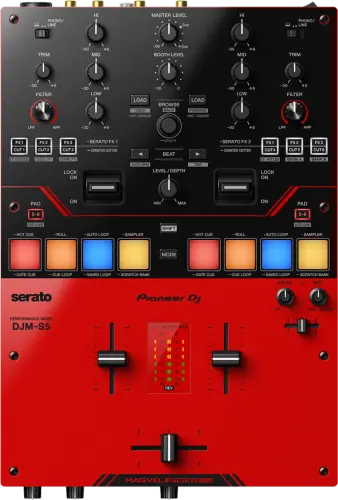
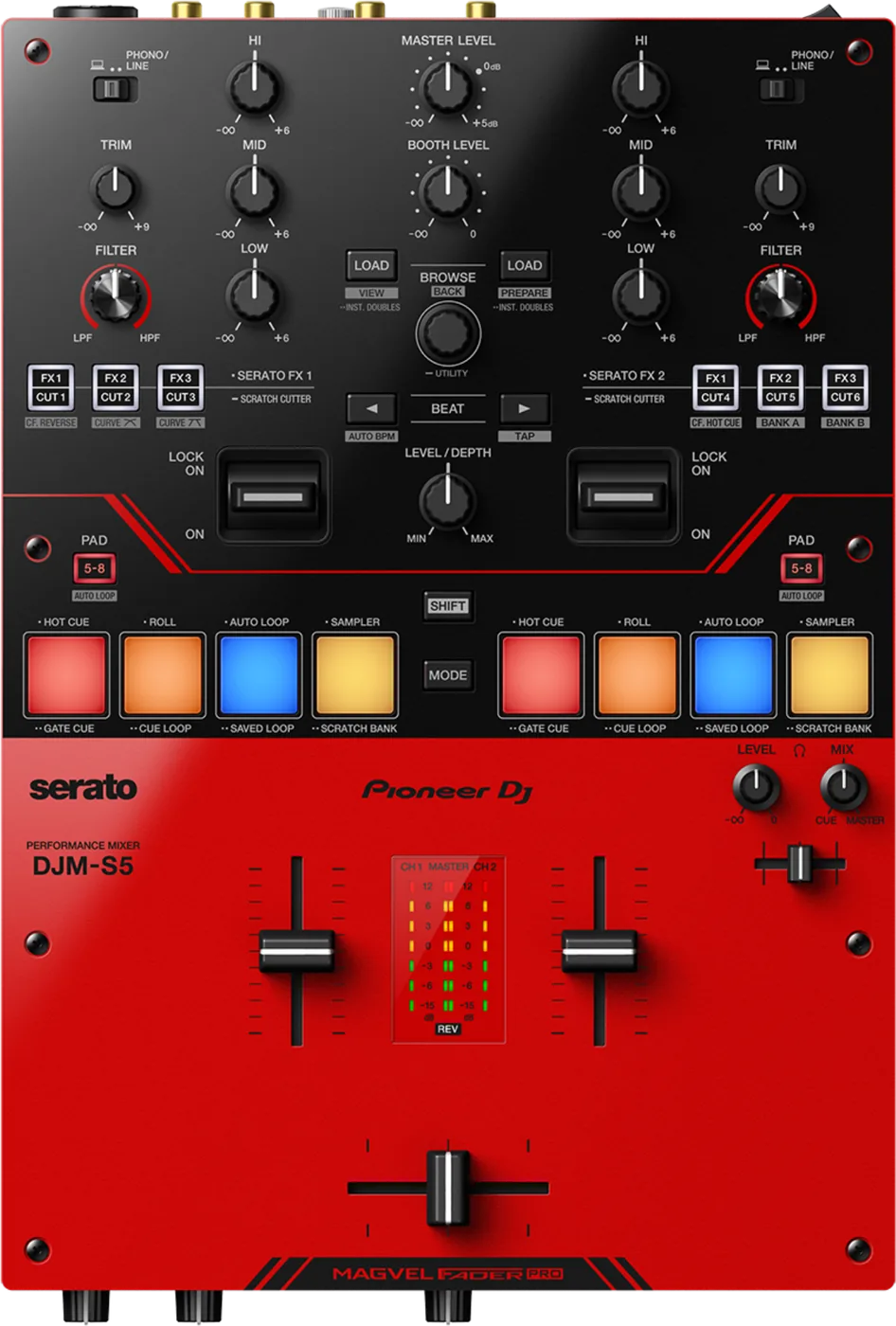
Booth briefing. The DJM-S5 is the AlphaTheta DJM-S mixer that sits below the more expensive desks in the line, and it connects to one laptop over USB-C. Of its two USB-C ports one carries data and the other is power only, so it is a single-computer mixer rather than a two-laptop changeover desk like the others that share its name. What it carries that the more expensive desks do not is SCRATCH CUTTER, and its crossfader curve adjusts in 7 steps. The port layout, the handover options and the fader settings are covered in the sections below.
When it goes wrong: No sound from the mixer
Fast Lane
The five things that decide your gig
The five things on the DJM-S5 that change what happens next, if you are reading this in the booth. All five are explained in full further down this page.
Two USB-C ports, and only one of them carries data.
The mixer has two USB-C ports, of which only one carries data. The second is power only. There is no two-laptop changeover on this mixer. Only one of the two USB-C ports carries data, and the manual rules out the obvious workaround by stating that a USB hub cannot be used with the unit.
It catches experienced DJs specifically, because two identical ports on a modern desk usually means two computers.
If the next DJ plugged in and nothing happened, look at which port.
A laptop on the power-only port gets power and no audio, which looks exactly like a dead mixer during a handover.
Ten seconds to check, and it is the first thing to check rather than the last.
It is particular about where its power comes from.
The unit runs on 5 V and 500 mA, and the manual asks for a USB power adapter rated 5 V / 500 mA or higher, under 100 W. A PC/Mac USB port can power it instead, with four named conditions under which it may not work even then.
The manual names four: the USB port on your PC/Mac does not supply enough power, another USB device is connected to your PC/Mac, headphones with impedance lower than 32 ohms are connected, or a mono jack is connected to the headphones output terminal.
SCRATCH CUTTER is the thing only this desk does.
SCRATCH CUTTER, which is unique to this desk in the line: hold an FX/CUT button for more than a second to enter it, and while you scratch the platter or jog wheel the unit outputs the selected cutting pattern without you using the crossfader.
Holding the button is only the first step: the effect lever has to be at ON or LOCK ON and a control signal has to be playing, which is why it looks broken to anyone who has not read the procedure.
The firmware record is one line: 1.03, fixing Scratch Cutter.
Version 1.03 is dated 31 May 2022, the announcement date, so it is effectively the only firmware most owners have ever seen and there has been no update since.
One release means little history to read, and it also means little has been fixed. Both halves are worth knowing.
If something goes wrong
It will not power up over USB
Short answer. The DJM-S5 is particular about where its power comes from. The unit runs on 5 V and 500 mA, and the manual asks for a USB power adapter rated 5 V / 500 mA or higher, under 100 W. A PC/Mac USB port can power it instead, with four named conditions under which it may not work even then.
The four conditions, named. The manual names four: the USB port on your PC/Mac does not supply enough power, another USB device is connected to your PC/Mac, headphones with impedance lower than 32 ohms are connected, or a mono jack is connected to the headphones output terminal. Two of those four are about headphones, which is not where anybody looks when a mixer will not come up.
Why this happens. Bus power is a negotiation between the host port and the device, and a laptop already feeding a drive and a screen has less to give. AlphaTheta cannot know what else is on your bus, so they publish the conditions instead of a verdict.
Fix it now. Use a USB power adapter on the power port. Unplug the other USB devices from the laptop. Check your headphones are 32 ohms or above and that the plug is a stereo one, not a mono jack. A hub is not an option here: "You can’t use a USB hub with this unit."
Avoid it next time. Treat bus power as a convenience for practice at home and mains power as the standard for a gig. Nothing that matters should depend on a negotiation.
The next DJ plugged in and nothing happened
Short answer. The DJM-S5 has one data port and one power port, so look at which USB-C port they used. A laptop on the power port is charging and doing nothing else.
Why this happens. Two identical-looking ports on a mixer whose whole family takes two computers. There is no error, no light and no message. The laptop may even report a connection, because power is a connection.
Fix it now. Move to the data port. Then accept the actual situation: one computer at a time on this desk, so the handover is unplug, replug, and a moment of silence unless you have planned for it. The mixer itself does not go quiet while that happens. The DJM-S5 mixes turntables, players, a microphone and an AUX source with no computer attached. Each channel input selector has a PHONO/LINE position, and the second USB-C port takes a USB power adapter, so neither the audio path nor the power depends on a laptop. Play something off the other channel's PHONO/LINE source or off AUX through the swap.
Avoid it next time. If you are booked back to back on a DJM-S5, plan the handover before the gig. Either agree a track that runs long off a turntable or a player while the laptops swap, or agree that one laptop covers both DJs.
A turntable or player has stopped mid-set
Short answer. The DJM-S5 can run that deck from its own Performance Pads instead. Transport mode puts pitch bend, pitch nudge, key lock, sync, a temporary cue and play/pause on the Performance Pads, and the manual introduces it as controlling a track without using a turntable or multi player. It needs the deck set to INT play mode.
Why it is worth knowing before the gig it matters on. It is not a headline feature and it is buried behind a SHIFT combination, so nobody finds it under pressure. Practise the entry once: hold MODE and SHIFT, press Performance Pad 4 twice.
The precondition that catches people. The deck has to be in INT play mode. In absolute or relative DVS mode the pads will not drive it, because the platter still owns the transport.
What the manual says to try first, in general. The manual carries no symptom table for this model. Its whole troubleshooting page is a link to the DJM-S5 FAQ plus two moves: inspect the devices connected to the unit, and turn the unit off and on, which the manual says may restore proper operation.
There is no fault table for this mixer
Short answer. There is no fault table for the DJM-S5, and knowing that saves you looking for one. The manual's whole troubleshooting section is three lines: inspect the devices connected to the unit, turn it off and on, and if the problem continues read the Precautions for Use and consult service. Everything a 2015 desk would put in a multi-page table is on the Pioneer DJ FAQ instead. The DJM-S11 and the DJM-S7 are written the same way, so across this line the power cycle is not a last resort, it is the documented first move.
What to do with that. Take it at face value in the booth. Check what is plugged in, then power cycle, and only then start hunting. The rest of this page is what the manual put in the connections and settings chapters instead of a table.
What to watch for
The firmware record, which is one line long
What is in the record. One DJM-S5 version, 1.03, which fixed Scratch Cutter functionality issues. Version 1.03 is dated 31 May 2022, the announcement date, so it is effectively the only firmware most owners have ever seen and there has been no update since.
What that means in practice. One published entry is a short record to read, and it means firmware is not the variable here that it is on other desks. It also means the one thing ever repaired on this mixer is the one thing that is unique to it.
How to read the version on the unit, with no computer. Press and hold the BROWSE knob for more than a second and the level indicators become the Utility settings display; press and hold it again to put them back. The Utility menu ends with a read-only VERSION item, and the version is read off three level indicators: CH1 shows the first digit, MASTER the second and CH2 the third. That is a thirty-second check on an unfamiliar desk and it needs nothing in your bag.
Do this on a second-hand unit. Read the version before you rely on SCRATCH CUTTER in a set. A desk below 1.03 carries the Scratch Cutter behaviour the change history describes as fixed.
Compatibility
What Serato unlocks, and the driver question
Short answer. The manual states that the unit unlocks Serato DJ Pro when it is plugged into the software, and documents Serato DVS on it with turntables or multi players. AlphaTheta also list Serato Studio as supported.
Stems. On the Serato Stems hardware list.
Control vinyl is not in the box. "Control discs aren’t included with this unit. You’ll need to buy them separately." What is in the box is one USB cable, the Quick Start Guide, the Precautions for Use and, in some regions, the warranty.
Drivers. AlphaTheta state the split in the manual: the Windows package contains both the dedicated audio driver and the Setting Utility, and the Mac package contains the Setting Utility only. So a Mac needs no audio driver for this mixer and Windows does.
The Windows half is a warning, not a note. "If a PC (Windows) without the dedicated audio driver software installed is connected to the unit, errors may occur on the PC." Install before you connect, not after, and do it at home rather than in the booth.
Two USB-C ports, one data path
Short answer. The DJM-S5 has two USB-C ports, of which only one carries data. The second is power only. There is no two-laptop changeover on this mixer. Only one of the two USB-C ports carries data, and the manual rules out the obvious workaround by stating that a USB hub cannot be used with the unit.
Why this catches experienced DJs specifically. It catches the people who know the line best. A DJ who has never used a battle mixer has no expectation to violate. A DJ who has done a hundred handovers on a DJM-S9 has a reflex, and the reflex is to find the second port. This desk has a second port. It just does not carry data, and nothing on the panel says which is which until you read the labels.
What this desk is, then. A single-computer battle mixer, and a good one, in a smaller and simpler package than the desk above it. The port count is a design decision consistent with that, not an oversight.
The manual's own wording on the second port. "This port can be used for power supply only. If you connect a PC/Mac to this port, only power is supplied." There is no ambiguity to interpret and no setting that changes it.
The workaround is ruled out in the same section. "You can’t use a USB hub with this unit." The connection diagram repeats it under the cable: "Use a USB cable for the connection. Do not use a USB hub." So a hub is not a way to get a second computer on, and it is not a way to share the port with a drive either.
Bus power. The unit runs on 5 V and 500 mA, and the manual asks for a USB power adapter rated 5 V / 500 mA or higher, under 100 W. A PC/Mac USB port can power it instead, with four named conditions under which it may not work even then. On a laptop with a crowded USB-C bus that is a real caveat rather than boilerplate, so carry the power supply.
Features explained
SCRATCH CUTTER, the thing only this desk does
Short answer. SCRATCH CUTTER, which is unique to this desk in the line: hold an FX/CUT button for more than a second to enter it, and while you scratch the platter or jog wheel the unit outputs the selected cutting pattern without you using the crossfader.
Why it matters. It separates the two hands. The crossfader work that a cut pattern normally requires is handled by the desk, which leaves the fader hand free for something else and makes patterns available to a DJ who has not spent years building the muscle for them. Neither the DJM-S7 nor the DJM-S9 has it.
When professionals use it. As a texture inside a transition rather than as a replacement for cutting, and on a build where both hands are already busy.
The full procedure, because holding the button is not it. The manual runs six steps. Hold an FX/CUT button for more than a second to enter the mode, press the FX/CUT button carrying the cutting pattern you want, set the beat fraction with the BEAT buttons, then "Set the effect lever to [ON] or [LOCK ON]." and "Play the control signal". Only then does moving the platter or jog wheel produce anything. Skipping the lever is the reason this feature gets reported as broken.
Getting back out. Press and hold the same FX/CUT button for more than a second again and the unit returns to Serato FX mode, with the effect assigned to that button selected.
Common mistakes. Treating it as an autopilot. It is synced to the scratch, so a scratch that is not in time produces a pattern that is not in time, faster.
The crossfader, and the seven-step curve
Short answer. MAGVEL FADER PRO with a FEELING ADJUST knob on the front panel that sets the "weight" of the fader, and a seven-position curve in the unit’s Utility menu, 1 to 7 with 4 as the factory setting, which is finer than either the DJM-S7 or the DJM-S9.
Why the seven steps matter. Curve is the setting that decides how sharply the sound arrives as the fader moves, and it is the most personal preference on a battle mixer. A two-position switch gives you somebody else's idea of sharp and somebody else's idea of smooth. Seven steps lets you find the one you actually want, which is the sort of thing that only sounds minor until you have played on both.
Where to find it. The number itself is in the unit's Utility menu. Press and hold the BROWSE knob for more than a second and the level indicators become the Utility settings display; press and hold it again to put them back. The panel is not shut out of it, though: SHIFT plus FX2/CUT2 recalls the crossfader curve set in Utility and SHIFT plus FX3/CUT3 sets a steeply raising curve, so the two curves you are most likely to want are one panel combination apart.
Reverse is not in that menu. Crossfader reverse is not in the Utility menu. It is a panel combination, SHIFT plus the FX1/CUT1 button, and the REV indicator lights when it is on. What the Utility menu holds is CH FADER REVERSE, which reverses the channel faders.
Cut-in and lag are somewhere else again. The crossfader cut-in range and the lag that smooths the volume change are not in the unit’s Utility menu at all. Both sit on the PREFERENCE tab of the Setting Utility application on a PC/Mac, so setting them needs a computer with that software installed. That is the setting a scratch DJ most wants to move on arrival, and it is the one that cannot be moved from the panel at all.
Crossfader Hot Cue, and why it sometimes refuses. Crossfader Hot Cue starts playback from a Hot Cue when you move the crossfader off one end, and the Utility menu sets a threshold that stops it retriggering: 1 beat, 1/2 beat, 1/4 beat, or no beats, which is the factory setting and means it always activates.
The effect levers and the pads
Short answer. The DJM-S5 carries two effect levers, one per channel, reaching up to 57 Serato effects including paid expansion packs, plus six FX/CUT buttons, and up to six software effects can run at the same time. On the pad side, four Performance Pads per channel, switched between pads 1 to 4 and pads 5 to 8 by the PAD 5-8 button, and 16 pad modes in the manual’s table: twelve Serato modes and four User modes.
Why the effects work differently here. The heavy lifting is on the software side rather than in the mixer, which is why the count reaches into the fifties and why part of it depends on expansion packs you may or may not own. A DJ reading the headline number and expecting all of it in the box will find some of it greyed out.
The lever has two working positions, and they behave differently. Each effect lever has two working positions. ON applies the effect only while you hold the lever there and it stops when you let go, and LOCK ON keeps the effect running with the lever left in place until you return it to the centre. A lever left at LOCK ON is the single most common way an effect outlives the moment it was meant for.
Two of the pad modes need something else bought. Two pad modes are gated on separate Serato products: the manual states that Pitch Play needs Pitch ’n Time DJ activated and Saved Flip needs Serato Flip.
The pads are smaller. Four per channel at 20.6 mm, against eight larger ones on the DJM-S7. Sixteen pad modes behind four buttons is a lot of function per square centimetre, so mode discipline matters more on this desk than on the bigger ones.
It mixes with no computer attached
Short answer. The DJM-S5 mixes turntables, players, a microphone and an AUX source with no computer attached. Each channel input selector has a PHONO/LINE position, and the second USB-C port takes a USB power adapter, so neither the audio path nor the power depends on a laptop.
Why this is the fact to have before you need it. A laptop that will not boot is not the end of this gig. Put the input selector switches on PHONO/LINE and the two channels, the EQ, the filter, the crossfader, the microphone and the AUX input all keep working into MASTER1 and BOOTH/MASTER2. It is also why the handover advice further down works at all.
The EQ is a kill, not a trim. The HI, MID and LOW knobs are isolators running from -∞ dB to +6 dB, so a band knob turned fully down removes that band completely rather than attenuating it.
What you lose without the computer. Everything that is Serato: the effects, the pads, SCRATCH CUTTER, DVS and Fader Start. The six FX/CUT buttons drive software effects, so with nothing on the data port they have nothing to drive.
Professional tips
Before you play on one
Set the curve in Utility on arrival. Seven steps is the best fader curve adjustment in this line and it is the one that needs a menu, so it is also the one nobody bothers with. Find your number once and remember it.
Plan the handover, do not improvise it. One data port means the swap is physical. Decide in advance what is playing while it happens.
Bring the power supply. Bus power is specified and qualified, and a booth is the wrong place to find out which side of that your laptop falls on.
Set cut-in at home, because you cannot set it at the desk. The crossfader cut-in range and the lag that smooths the volume change are not in the unit’s Utility menu at all. Both sit on the PREFERENCE tab of the Setting Utility application on a PC/Mac, so setting them needs a computer with that software installed.
Learn SCRATCH CUTTER before the gig, not during. It is genuinely distinctive, it is entered by holding a button for over a second, and it needs the effect lever and a control signal before it makes any sound. All three of those are worth having in the hands already.
Connections and setup
The connection rules the manual actually states
Short answer. The DJM-S5 has four connection instructions that are worth more than the rest of the setup page put together, and three of them are about what not to do.
Do not plug things in with it running. "Turn the unit off and disconnect the USB cable before connecting other units. Connect the USB cable after all the connections are complete." That is the opposite of the booth reflex, which is to swap an RCA pair live and see what happens.
The XLR outputs have two prohibitions on them. "Do not connect a power cord from another product to the terminals. Do not connect to a terminal that can supply phantom power." Phantom power on the house desk's XLR input is the version of this that people actually hit.
Do not adapt the XLRs down to RCA. "Use the [MASTER1] terminals for balanced output. Connecting the terminals to unbalanced inputs (RCA, etc.) with an XLR-RCA conversion cable (conversion adapter), etc. results in unwanted noises and/or poor sound quality." If the amplifier or interface only takes RCA, the manual points you at the other output instead: use BOOTH/MASTER2 for unbalanced input, and set it to MASTER in Utility if you want the master feed there rather than a booth feed.
Ground the turntables. Connect a turntable’s ground wire. Reduces unwanted noises that occur when a turntable is connected to the unit. A hum that appears the moment a deck is connected is usually this and not the mixer.
One pair of sockets doing two jobs
Short answer. The BOOTH/MASTER2 pair on the DJM-S5 has its own level knob and its own mono setting, and both follow whichever role you gave those sockets. BOOTH LEVEL sets the volume going out of them. In Utility there are two separate mono or stereo settings, one that applies when the terminal setting is BOOTH and one that applies when it is MASTER, so switching the role does not carry the mono choice across with it. A booth monitor summed to mono and a second master feed summed to mono are different decisions on this desk, and each is remembered separately.
Why this matters. Every other desk in this line gives you a booth send and a second master as separate outputs. Here they are the same pair, so you choose one. A venue expecting a second master feed from an RCA pair that is set to BOOTH gets a signal that follows the booth knob, and nothing on the panel says which role is active.
Do this. Read the terminal setting in Utility at load-in and decide the role before you set a level to it. Then check the mono or stereo setting for that role rather than assuming it carried over.
Firmware, drivers and manuals
Official downloads and documents
Go to AlphaTheta for the files themselves. We link their pages instead of hosting a copy, because a manual copied here is a snapshot of release day and theirs is the one that stays current.
Manuals. Official Pioneer DJ manual page →
Broken link? Let us know and we'll fix it.
Frequently asked questions
Quick answers
- Can two laptops be connected for a back-to-back?
- No. There is no two-laptop changeover on this mixer. Only one of the two USB-C ports carries data, and the manual rules out the obvious workaround by stating that a USB hub cannot be used with the unit.
- What is the second USB-C port for, then?
- Power, and nothing else. The mixer has two USB-C ports, of which only one carries data. The second is power only.
- What does SCRATCH CUTTER do?
- SCRATCH CUTTER, which is unique to this desk in the line: hold an FX/CUT button for more than a second to enter it, and while you scratch the platter or jog wheel the unit outputs the selected cutting pattern without you using the crossfader.
- Does it work without a laptop?
- The DJM-S5 mixes turntables, players, a microphone and an AUX source with no computer attached. Each channel input selector has a PHONO/LINE position, and the second USB-C port takes a USB power adapter, so neither the audio path nor the power depends on a laptop.
- Is Serato DVS included?
- The manual states that the unit unlocks Serato DJ Pro when it is plugged into the software, and documents Serato DVS on it with turntables or multi players. AlphaTheta also list Serato Studio as supported. Control discs aren’t included with this unit. You’ll need to buy them separately.
- Does it support Serato Stems?
- On the Serato Stems hardware list.
- Is there a Mac driver?
- AlphaTheta state the split in the manual: the Windows package contains both the dedicated audio driver and the Setting Utility, and the Mac package contains the Setting Utility only. So a Mac needs no audio driver for this mixer and Windows does.
- Can it run on USB bus power alone?
- The unit runs on 5 V and 500 mA, and the manual asks for a USB power adapter rated 5 V / 500 mA or higher, under 100 W. A PC/Mac USB port can power it instead, with four named conditions under which it may not work even then.
- How many pad modes are there?
- Sixteen in the manual's table: four Performance Pads per channel, switched between pads 1 to 4 and pads 5 to 8 by the PAD 5-8 button, and 16 pad modes in the manual’s table: twelve Serato modes and four User modes.
- Can a USB hub get a second device on the data port?
- No. You can’t use a USB hub with this unit.
- Does it switch itself off after a while?
- The Utility menu has no auto standby or power management item, and none of the DJM-S5 documentation describes the unit powering itself down on a timer. Power is the rear ON/OFF switch.
- Where is the crossfader cut-in setting?
- The crossfader cut-in range and the lag that smooths the volume change are not in the unit’s Utility menu at all. Both sit on the PREFERENCE tab of the Setting Utility application on a PC/Mac, so setting them needs a computer with that software installed.
- Does it have Bluetooth?
- No. The DJM-S7 does; this desk does not.
- Is there newer firmware than 1.03?
- No. Version 1.03 is dated 31 May 2022, the announcement date, so it is effectively the only firmware most owners have ever seen and there has been no update since.
- Is it still sold new?
- Still in the range, and sold on AlphaTheta’s own store.
Commonly paired with
What you usually find beside it in working booths, from club, festival and rental installs rather than from a manufacturer document.
Pioneer DJ All brands Knowledge base FAQ and Fixes Dictionary
Playing soon and it is not working?
Start Emergency ModeKeep the Emergency Card
We will email you the printable PDF so it is on your phone before the next dark booth. Occasional notes that save gigs. No spam, unsubscribe in one click.
Registering is free and counts everywhere on Save My Gig. We send a confirmation email first. Your address is stored with Brevo, our email provider. Unsubscribe any time. Privacy
Sources: AlphaTheta's DJM-S5 product page, the store specification for the data and power split across the two USB-C ports, and the owner's manual, and AlphaTheta's published firmware change history for version 1.03, checked 11 August 2026. Specifications theirs, priorities ours.