

DJM-S7, the field manual
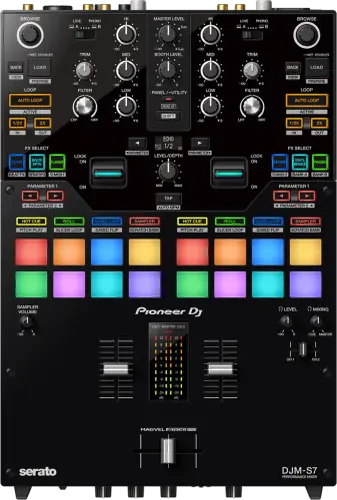
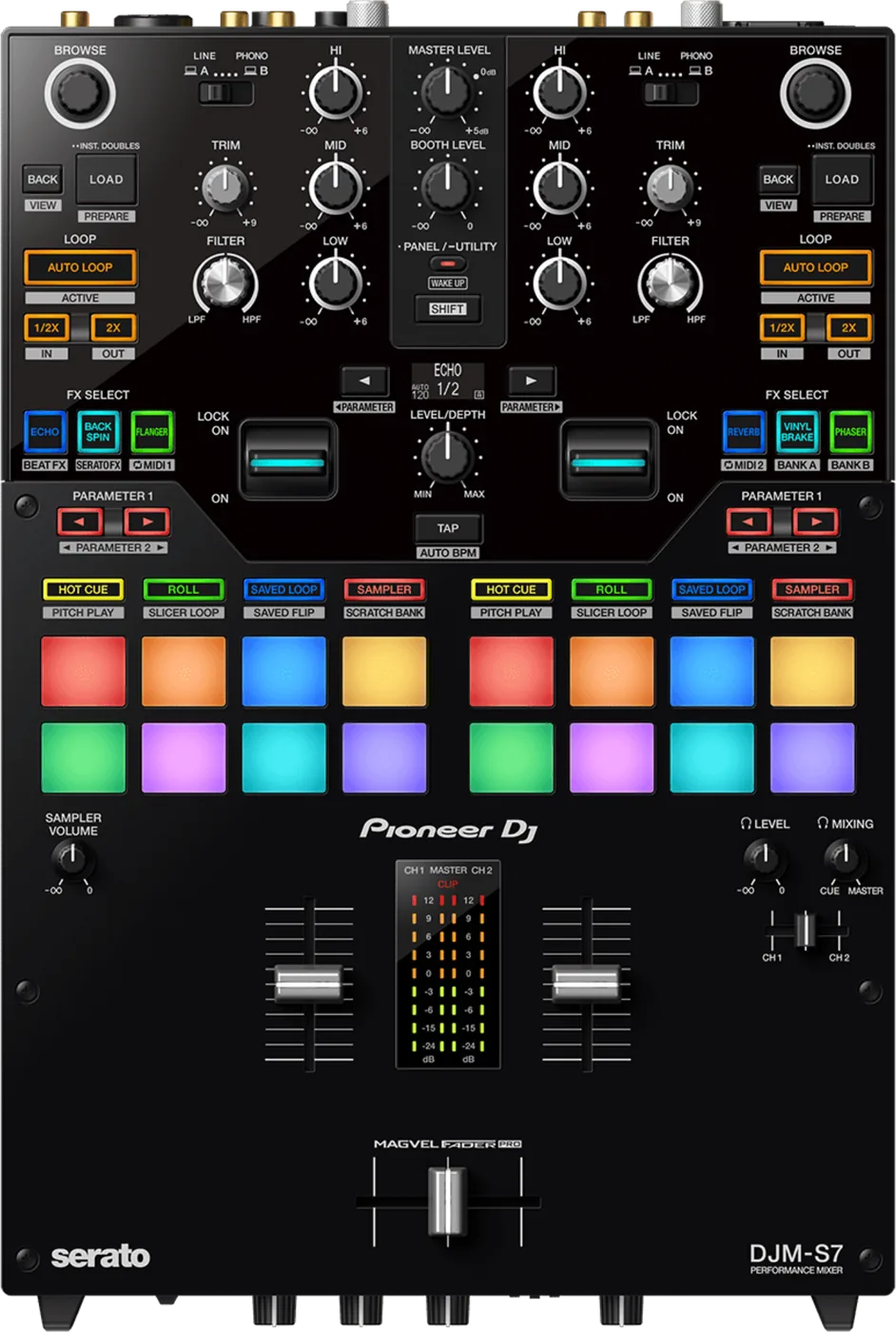
Booth briefing. The DJM-S7 is a two-channel battle desk with sixteen pads, and three things worth knowing before you plan around it. The screen is a small OLED that shows the active effect name and the beat value, and that doubles as the settings screen for the Utility menu. It shows no waveform and no library, and it does not browse. It mixes on its own as well: the LINE and PHONO positions, the microphone, the AUX input and the Bluetooth input all reach the master with no computer connected, and the pairing procedure in the manual begins by turning the unit on. And on the two-computer setup AlphaTheta attach conditions in the manual that the marketing does not carry.
When it goes wrong: No sound from the mixer
Fast Lane
The five things that decide your gig
The five things on the DJM-S7 that change what happens next, if you are reading this in the booth. All five are explained in full further down this page.
The OLED is not a browsing screen, whatever "display" suggests.
It is a small OLED that shows the active effect name and the beat value, and that doubles as the settings screen for the Utility menu. It shows no waveform and no library, and it does not browse.
The word display on a spec sheet invites a reader to expect waveforms and a library. This one gives you neither.
A silent channel: check input select first, and know what turning it does.
The switch offers an input select per channel with four sources: a computer on USB A, a computer on USB B, LINE for a multi player, and PHONO for a turntable.
Before you flip it, one condition from the manual: turning an input selector switch forcibly disconnects any device on the [CDJ/CONTROLLER] terminals from a connected computer, and the manual warns that data on the device may be corrupted.
It goes into Off mode on its own, and the button that wakes it is not the power switch.
With POWER MANAGEMENT on, the unit enters Off mode after 20 minutes without being used, which the manual defines as no audio signal arriving at the channels, and the [PANEL/UTILITY] button is what brings it back. The factory setting is ON.
EU Ecodesign, shipped enabled. A desk that went dark between soundcheck and the first track has obeyed rather than failed.
Bluetooth holds one pairing at a time, and out of the box it bypasses the channel faders.
The radio is Bluetooth 5.0 with SBC, AAC, aptX and aptX Low Latency, about 10 m range, one paired device at a time. Pairing a second device deregisters the first.
On the desk itself: hold [BLUETOOTH PAIRING] for about 2 seconds to enter pairing state, which lasts about 2 minutes and then gives up, and press it briefly to reconnect a device already registered. BLUETOOTH INPUT in Utility routes the audio to MASTER, CH 1 or CH 2, and the factory setting is MASTER, so out of the box that audio never passes a channel fader.
What the software unlocks, and the voucher that cannot be reissued.
On unlocking, the manual says the unit unlocks Serato DJ Pro for free when plugged into the software, and that rekordbox recognises the unit automatically with Performance mode and DVS usable with no paid subscription plan. AlphaTheta also describe Serato DVS as unlocked.
In the box, a Serato DJ Pro Expansion Pack voucher is listed among the contents, the manual warns that the voucher code cannot be reissued, and the manual reaches DVS through the [Expansion Packs] tab in Serato DJ Pro where [Vinyl/CDJ Control] has to be selected and enabled.
If something goes wrong
A channel is silent, or it is loud and distorted
Check the input select first. The DJM-S7 gives you an input select per channel with four sources: a computer on USB A, a computer on USB B, LINE for a multi player, and PHONO for a turntable. Four sources, and two of them are computers, which is one more thing to get wrong than the switch appears to offer.
Read the meter before you touch anything. The channel level indicator is pre-fader, so if it lights the source is arriving and the problem is the fader, the crossfader or the master. If it stays dark the channel is listening to something that is not there.
One condition before you flip the switch. If a multi player or a controller is on the CDJ/CONTROLLER terminals, turning an input selector switch forcibly disconnects any device on the [CDJ/CONTROLLER] terminals from a connected computer, and the manual warns that data on the device may be corrupted. That does not make the check wrong, it makes it a thing to do deliberately: pull the storage device out of the player first, or look at the switch positions on the [MIXER INPUT] tab of Setting Utility instead, which reports them without your touching the desk.
Why this happens. Silent usually means the channel is listening to a source that is not there. Loud and distorted usually means the opposite mistake: a line-level source arriving at a phono input, which the manual warns against explicitly, and which the phono preamp then amplifies as though it were a cartridge.
Fix it now. Match the switch to what is physically plugged in, then check the rear connections match the switch. Turntables to PHONO, everything else to LINE, and never the other way around. If the whole master sounds noisy rather than one channel, look at the output wiring: MASTER 1 and BOOTH are for balanced output only, and the manual says feeding an unbalanced input through a conversion cable results in unwanted noises and poor sound quality, with MASTER 2 as the unbalanced pair. Nothing that can supply phantom power, and no power cord from another product, goes near MASTER 1.
Avoid it next time. Set both switches during your line check and look at them again after anybody else touches the desk.
The mixer switched itself off
Short answer. The DJM-S7 has Power Management, and with it on, the unit enters Off mode after 20 minutes without being used, which the manual defines as no audio signal arriving at the channels, and the [PANEL/UTILITY] button is what brings it back. The factory setting is ON.
Why this happens. It is a compliance behaviour, not a fault, and it is on by default. Note the condition: the count is on audio signal at the channels, not on your hands. A desk with a record idling into a live channel is being used as far as the mixer is concerned, and a desk sitting quiet with everything patched is not. Twenty minutes is longer than any transition and shorter than plenty of real gaps: soundcheck to the first track, a support act's set, a long changeover with a live band in between.
Fix it now. Press [PANEL/UTILITY] on the top panel. You do not need the rear power switch and you should not reach for it first. Then check your levels before the fader goes up, because the desk came back from cold.
Avoid it next time. Turn POWER MANAGEMENT off in Utility on a desk that will sit idle, and turn it back on if the venue cares about it. The manual notes that power consumption may increase with it off. To get there: hold [PANEL/UTILITY] for more than a second to open Utility, move through it with the [BEAT] buttons, and confirm with [SHIFT].
If it is not that. The manual's whole troubleshooting section is two lines: inspect the devices connected with the unit, and the unit may restore proper operation after you turn it off and on. That is the maker's second step, not its first.
There is no fault table for this mixer
Short answer. There is no fault table for the DJM-S7, and knowing that saves you looking for one. The Instruction Manual's entire troubleshooting section is three lines: inspect the devices connected to the unit, turn it off and on, and if the problem continues read the Precautions for Use and consult service. Everything a 2015 desk would put in a multi-page table sits on the Pioneer DJ FAQ instead. The DJM-S11 is written the same way and the DJM-S9 of 2015 is not, so on this generation the power cycle is not a last resort, it is the documented first move.
What to do with that. Take it at face value in the booth. Check what is plugged in, then power cycle, and only then start hunting. On an older desk that order would be wrong; here it is the manufacturer’s own sequence, and the rest of this page is what the manual put in the connections chapter instead of a table.
What to watch for
The firmware record, which is short
What is in the record. One DJM-S7 release, 1.10 of 18 July 2024. It brings the EU Ecodesign automatic power-off at 20 minutes when Power Management is on, and renames the setting from Auto Standby and Auto Power-Off to Power Management. The change history says the time was changed to 20 minutes, so a desk on the shipping firmware had a longer wait.
What that means. AlphaTheta has published no defect fix for this mixer. A short record is not the same as a hidden one, and this page does not read either optimism or suspicion into it. What it does mean is that a desk that switched itself off during a long changeover is obeying a setting rather than failing.
Do this. If your changeovers run long, or the desk sits armed between sets, look at Power Management before you look at the power supply.
Compatibility
What the software unlocks, and the drivers
Short answer. On the DJM-S7, the manual says the unit unlocks Serato DJ Pro for free when plugged into the software, and that rekordbox recognises the unit automatically with Performance mode and DVS usable with no paid subscription plan. AlphaTheta also describe Serato DVS as unlocked. That is the difference from the DJM-S9, where the timecode capability is a separate purchase.
The voucher, and why a used one matters. In the box, a Serato DJ Pro Expansion Pack voucher is listed among the contents, the manual warns that the voucher code cannot be reissued, and the manual reaches DVS through the [Expansion Packs] tab in Serato DJ Pro where [Vinyl/CDJ Control] has to be selected and enabled. A second-hand DJM-S7 arrives without that slip of paper more often than not, which is exactly why the free rekordbox route above is worth knowing: Performance mode and DVS are both listed as needing no paid subscription plan.
Stems. On the Serato Stems hardware list.
Drivers. Windows installs the audio driver software, which brings Setting Utility with it, and the manual says a Mac installs Setting Utility only. The Windows driver v1.000 covers 10 and 11, and the manual adds that connecting a Windows PC without the driver installed may cause errors on that PC.
The phono warning is worth repeating. The manual is explicit that line-level sources must not be sent to the phono inputs. The specification says why: a maximum input level of -17.8 dBu at PHONO against +15 dBu at LINE. A line source into a phono input is loud and distorted, and it is the fastest way to make a working desk sound broken.
Two computers, and the conditions
Short answer. The DJM-S7 is built for it. It carries USB Type-A x2 and USB Type-B x2, and USB A and USB B are separate positions on the input select, which is what makes the handover physical rather than software. The manual attaches conditions rather than selling it: with two computers connected and the CH 1 and CH 2 input selectors set to different computers, the pad-mode switching option works only if it is enabled on each computer; with the selectors on LINE or PHONO the crossfader cut-in setting is invalid and the default is applied; and the crossfader volume smoothing falls back to NONE when two computers are connected and the selectors are either on different computers or on LINE and PHONO.
The line that is often quoted at this, and should not be. There is also a separate line in the same manual about the other direction, which is mixers rather than computers: operation is not guaranteed when multiple units are connected to one PC/Mac. That is several mixers on one laptop, which is not what a back-to-back is. Read together they say two different things, and only the first one is about your changeover.
Cables. Plan for this before you leave the house: one USB cable is in the box and a second computer needs another cable conforming to USB 2.0, and both connection diagrams in the manual say to use a USB cable and not a USB hub. A hub is not a way round a short cable on this desk, and neither is the venue's spare.
What to do with that. The handover works and DJs use it. Treat it as a thing to rehearse in soundcheck rather than a thing to discover at the moment of the swap, and expect that a setting you made on one side may not be honoured on the other.
Bluetooth, and the one-device rule
Short answer. The DJM-S7 holds one pairing at a time. The radio is Bluetooth 5.0 with SBC, AAC, aptX and aptX Low Latency, about 10 m range, one paired device at a time. Pairing a second device deregisters the first.
How the pairing actually behaves. On the panel, hold [BLUETOOTH PAIRING] for about 2 seconds to enter pairing state, which lasts about 2 minutes and then gives up, and press it briefly to reconnect a device already registered. BLUETOOTH INPUT in Utility routes the audio to MASTER, CH 1 or CH 2, and the factory setting is MASTER, so out of the box that audio never passes a channel fader. There is also a BT LINK TONE setting that plays a tone into the headphones when a device connects or the link breaks, at OFF, SMALL, MID or LARGE, with MID from the factory.
Why it matters. The deregistration is the part that bites. A promoter pairs their phone to play something between sets, and the DJ who paired earlier finds their own device is no longer known to the mixer. Nothing warns anybody that this has happened, and the symptom arrives as a phone that will not connect.
When professionals use it. Walk-in music before doors, and playing a request off a phone without touching the rig. It is a convenience feature and it is a good one. It is not a performance input, and aptX Low Latency is not zero latency.
The warning that comes with the radio. The Precautions for Use supplied with this mixer states that it should not be used by persons who have heart pacemakers installed, since adverse effects could occur, and that it should not be used in medical facilities of any kind, near medical equipment, inside airplanes, or near automatic doors.
Common mistakes. Letting a second person pair mid-set and then wondering why yours dropped, and planning any part of a set around a wireless link in a room full of radios.
Features explained
The OLED, and what it is not
Short answer. It is a small OLED that shows the active effect name and the beat value, and that doubles as the settings screen for the Utility menu. It shows no waveform and no library, and it does not browse.
Why the distinction is worth making. The word "display" on a spec sheet invites a reader to picture the DJM-S11's touchscreen, which browses a library and draws waveforms. This one tells you which effect is armed and at what beat division. That is genuinely useful, because it removes the glance at the laptop that a Beat FX change otherwise takes from you. It is not a reason to leave the laptop at home, because nothing here browses.
How to get into the settings. The same screen is the Utility menu, so you reach every setting on this page from the panel: hold [PANEL/UTILITY] for more than a second to open Utility, move through it with the [BEAT] buttons, and confirm with [SHIFT]. That is worth learning before you need it, because the settings that matter most on this desk are in there.
What is on the rest of the panel. The input select gives you an input select per channel with four sources: a computer on USB A, a computer on USB B, LINE for a multi player, and PHONO for a turntable. There are 16 pads, eight per channel, with both Serato and rekordbox mode sets. On the mic side, an off/on/talkover switch, level, a single TONE sweep rather than separate HI and LOW, MIC TO BOOTH, with limiter and talkover settings in Utility, and the manual has MIC LOW CUT, MIC TO BOOTH and MIC LIMITER all set to ON from the factory, with talkover on ADV. at -18dB.
One metering detail. The channel level indicator shows the level before the sound passes through the channel fader, so it lights with the fader down. That makes it the right instrument for telling an absent source from a closed fader.
MAGVEL FADER PRO on this desk
Short answer. MAGVEL FADER PRO, described at launch as carrying 30 percent more vertical rigidity in the knob-mounting shaft. Three controls sit on the desk itself: a CURVE knob, a REVERSE switch, and a FEELING ADJUST knob that the manual describes as adjusting the weight of the crossfader.
The part that surprises people. Cut-in is not a knob here: the cut-in range and the volume smoothing time are not on the mixer at all, and both live on the [PREFERENCE] tab of Setting Utility, which runs on a connected computer. So a DJ who arrives with no laptop can set the curve, the reverse and the weight of the fader, and cannot touch the cut-in at all. On a rented desk that is the difference between a fader that feels like yours and one that does not.
Two effects that take the fader off you. FADER PITCH and FADER SYNTH both carry the same footnote in the Beat FX table: you cannot adjust the volume with the channel fader while the effect is on. Six others, ECHO, DUCKING ECHO, ECHO OUT, SPIRAL, DELAY and REVERB, carry a second one: you cannot monitor the effected sound. Neither is a fault.
What is not here. AlphaTheta describe no user-replaceable fader cartridge for this mixer.
It mixes without a computer
Short answer. The DJM-S7 is a working analogue mixer on its own. In the manual, the LINE and PHONO positions, the microphone, the AUX input and the Bluetooth input all reach the master with no computer connected, and the pairing procedure in the manual begins by turning the unit on.
Why this needs saying. A battle mixer bought for Serato reads like a computer accessory, and DJs plan around it as though the laptop were the power switch. It is not. Two turntables, a microphone and a phone will run a whole gig on this desk with nothing plugged into either USB Type-B port.
The two inputs that are not on the channel strip. AUX has a LEVEL knob on the front panel and an AUX INPUT LEVEL choice of 0dB or 12dB in Utility, and that is all it has. Bluetooth has a LEVEL knob and a routing choice in Utility. Neither one appears on the input select switch, so if you are hunting a channel for them you will not find one.
What that changes at the desk. If the master is alive and the computer is not, you still have a mixer. Get the music onto LINE, PHONO, AUX or Bluetooth and keep the room going while you sort the laptop out.
Professional tips
Before you play on one
Set the crossfader on arrival, and know which half you can reach. Curve, reverse and Feeling Adjust are on the desk and take two minutes. Cut-in is not on the desk, so if you care about it, bring the laptop that runs Setting Utility.
Carry your own second USB cable. One is in the box, the second computer needs another, and the manual rules a hub out on both connection diagrams. This is the cheapest gig-saving item in the bag.
Rehearse the back-to-back in soundcheck. Two computers is documented with conditions on this desk, so find out which settings do not survive the swap while it still matters to nobody.
Use the OLED for what it is. Arm your effects from the panel and read the beat value off the screen instead of glancing at the laptop, and learn the Utility route on the same screen while you are there.
Decide about Power Management before the first track. If the desk will sit with no signal at the channels for more than twenty minutes at any point, that setting is a decision rather than a default.
Turn Fader Start on before you need it. It is not a panel control: it has to be enabled on the [PREFERENCE] tab of Setting Utility, which means a computer, which means not mid-set.
Connections and setup
The rules on the back and the front
Outputs. The DJM-S7 is strict about how the master leaves it. MASTER 1 and BOOTH are for balanced output only, and the manual says feeding an unbalanced input through a conversion cable results in unwanted noises and poor sound quality, with MASTER 2 as the unbalanced pair. Nothing that can supply phantom power, and no power cord from another product, goes near MASTER 1.
The CDJ/CONTROLLER terminals are not storage ports. They take a compatible multi player or controller. The manual says not to connect storage devices such as USB drives or hard disks to them, and adds the condition that governs the whole troubleshooting section below: turning an input selector switch forcibly disconnects any device on the [CDJ/CONTROLLER] terminals from a connected computer, and the manual warns that data on the device may be corrupted.
Turntable hum. The SIGNAL GND terminals take a turntable ground wire and the manual says they reduce the unwanted noises that occur when a turntable is connected. Two turntables, two ground wires, before you start chasing the hum anywhere else.
The short-circuit pin plugs. The Precautions for Use supplied with the mixer carries a caution to keep the short-circuit pin plugs out of the reach of children and infants, and to contact a doctor immediately if one is swallowed. The Instruction Manual never mentions them, so if you find an RCA PHONO socket blocked by a small plug, that is the part, and nothing in the documents tells you when to fit or remove it.
Two physical rules. The front guard protects the terminals and knobs, and the manual says not to stand the unit on the guards as if they were feet because it may tip over. And leave at least 5 cm at the rear and 5 cm at each side for ventilation, with the tolerable operating range given as +5 to +45 degrees C at 5 to 85 percent humidity with no condensation.
Firmware, drivers and manuals
Official downloads and documents
Go to AlphaTheta for the files themselves. We link their pages instead of hosting a copy, because a manual copied here is a snapshot of release day and theirs is the one that stays current.
Firmware downloads. Official Pioneer DJ firmware page →
Manuals. Official Pioneer DJ manual page →
Broken link? Let us know and we'll fix it.
Frequently asked questions
Quick answers
- Does the screen show waveforms or let me browse?
- No. It is a small OLED that shows the active effect name and the beat value, and that doubles as the settings screen for the Utility menu. It shows no waveform and no library, and it does not browse.
- Does it work without a laptop?
- Yes. In the manual, the LINE and PHONO positions, the microphone, the AUX input and the Bluetooth input all reach the master with no computer connected, and the pairing procedure in the manual begins by turning the unit on.
- How many positions does the input select have?
- It gives you an input select per channel with four sources: a computer on USB A, a computer on USB B, LINE for a multi player, and PHONO for a turntable.
- Is it safe to flip the input select mid-gig?
- With care: turning an input selector switch forcibly disconnects any device on the [CDJ/CONTROLLER] terminals from a connected computer, and the manual warns that data on the device may be corrupted.
- Can two laptops be connected for a back-to-back?
- Yes, with conditions AlphaTheta put in the manual: with two computers connected and the CH 1 and CH 2 input selectors set to different computers, the pad-mode switching option works only if it is enabled on each computer; with the selectors on LINE or PHONO the crossfader cut-in setting is invalid and the default is applied; and the crossfader volume smoothing falls back to NONE when two computers are connected and the selectors are either on different computers or on LINE and PHONO.
- Can I use a USB hub?
- No. On cables, one USB cable is in the box and a second computer needs another cable conforming to USB 2.0, and both connection diagrams in the manual say to use a USB cable and not a USB hub.
- Is Serato DVS included?
- On unlocking, the manual says the unit unlocks Serato DJ Pro for free when plugged into the software, and that rekordbox recognises the unit automatically with Performance mode and DVS usable with no paid subscription plan. AlphaTheta also describe Serato DVS as unlocked.
- What if the voucher is missing on a used one?
- In the box originally, a Serato DJ Pro Expansion Pack voucher is listed among the contents, the manual warns that the voucher code cannot be reissued, and the manual reaches DVS through the [Expansion Packs] tab in Serato DJ Pro where [Vinyl/CDJ Control] has to be selected and enabled.
- Can I pair two phones over Bluetooth?
- No. The radio is Bluetooth 5.0 with SBC, AAC, aptX and aptX Low Latency, about 10 m range, one paired device at a time. Pairing a second device deregisters the first.
- Why can I not fade the Bluetooth audio down?
- On the routing, hold [BLUETOOTH PAIRING] for about 2 seconds to enter pairing state, which lasts about 2 minutes and then gives up, and press it briefly to reconnect a device already registered. BLUETOOTH INPUT in Utility routes the audio to MASTER, CH 1 or CH 2, and the factory setting is MASTER, so out of the box that audio never passes a channel fader.
- Does it support Serato Stems?
- On the Serato Stems hardware list.
- Why did it switch itself off?
- Power Management: with it on, the unit enters Off mode after 20 minutes without being used, which the manual defines as no audio signal arriving at the channels, and the [PANEL/UTILITY] button is what brings it back. The factory setting is ON.
- How do I open the Utility menu?
- On the panel, hold [PANEL/UTILITY] for more than a second to open Utility, move through it with the [BEAT] buttons, and confirm with [SHIFT].
- Where is the crossfader cut-in setting?
- Not on the mixer: the cut-in range and the volume smoothing time are not on the mixer at all, and both live on the [PREFERENCE] tab of Setting Utility, which runs on a connected computer.
- Is there a driver for my Mac?
- Windows installs the audio driver software, which brings Setting Utility with it, and the manual says a Mac installs Setting Utility only. The Windows driver v1.000 covers 10 and 11, and the manual adds that connecting a Windows PC without the driver installed may cause errors on that PC.
- Can I replace the crossfader myself?
- AlphaTheta describe no user-replaceable fader cartridge for this mixer.
- Is it still sold new?
- Still in the range, and sold on AlphaTheta’s own store.
Commonly paired with
What you usually find beside it in working booths, from club, festival and rental installs rather than from a manufacturer document.
Pioneer DJ All brands Knowledge base FAQ and Fixes Dictionary
Playing soon and it is not working?
Start Emergency ModeKeep the Emergency Card
We will email you the printable PDF so it is on your phone before the next dark booth. Occasional notes that save gigs. No spam, unsubscribe in one click.
Registering is free and counts everywhere on Save My Gig. We send a confirmation email first. Your address is stored with Brevo, our email provider. Unsubscribe any time. Privacy
Sources: AlphaTheta's DJM-S7 product page, the owner's manual DRI1682-B, the Precautions for Use DRH1615-D supplied with the mixer, and the firmware change history, checked 31 August 2026. Specifications theirs, priorities ours.