

Mixed In Key, field manual
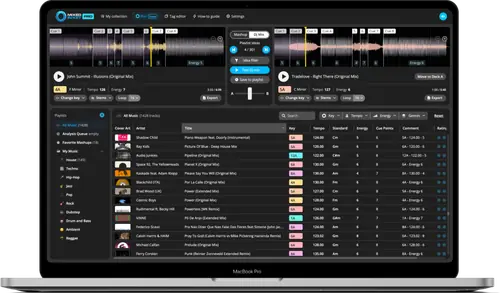
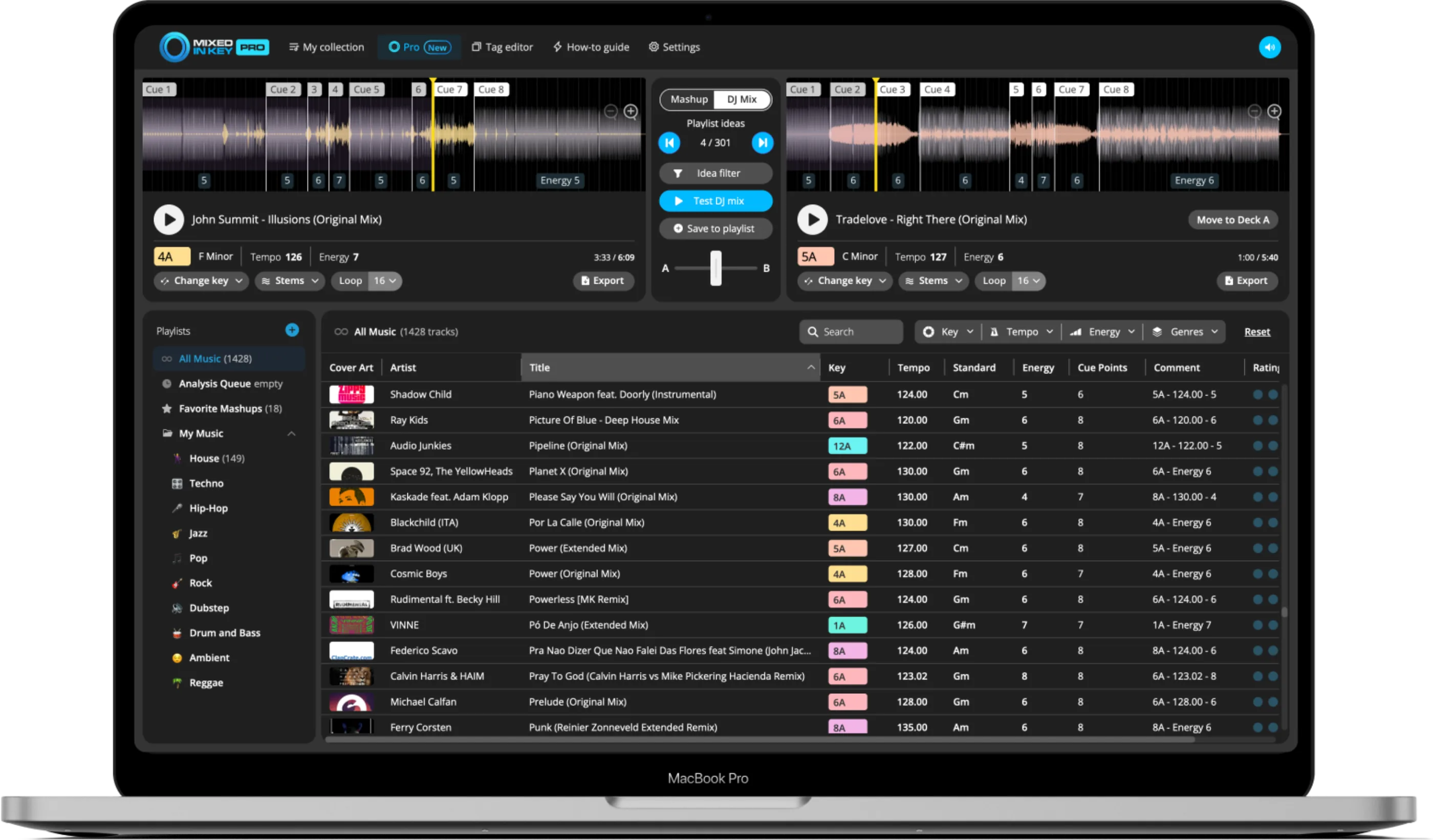
Booth briefing. Mixed In Key is analysis software for DJ libraries, made by Mixed In Key LLC. It listens to your tracks and gives each one a key in Camelot notation, a BPM, an Energy Level and up to 8 cue points, then writes them into your files and your DJ program's library. It works with rekordbox, Serato, TRAKTOR, Engine DJ and VirtualDJ, and the Pro edition adds mashup suggestions and stem separation. You play the set in your DJ program. A DJ cares because harmonic mixing and energy planning start here, and so do the cue points you will trust at the gig.
The story: Mixed In Key, the history
Fast Lane
Mixed In Key: software profile
Analysis software that prepares your tracks for your DJ program.
- Runs on
- macOS 12.7.6 Monterey or later and Windows 10 or later. Stems: a Mac with an M1 chip, or Windows with at least 6 GB of GPU memory. What it needs to run
- Reads your library from
- Local MP3, AIFF, FLAC, MP4 and M4A files; WAV is analysed but not tagged. What it needs to run
- What you build with it
- Camelot key, BPM, Energy Level and up to 8 cue points per track. Pro adds mashups and stems.
- Playing live
- No. It prepares tracks and your DJ program plays them. What it is, and what it leaves to other software
- What it costs to keep
- One time purchase in Standard and Pro editions, on up to 3 personal computers. What the licence buys
The five things that decide your pick
Mixed In Key in five points, each linked to its section.
It prepares your tracks, it does not play them
Analyse first, then open your DJ program.
Key, energy and cue points in one pass
Edit the cues before you export them.
Tags and cues take different routes into rekordbox
Do both steps, or the cues never arrive.
Pro adds mashup suggestions and stems
Check your computer meets the stem separation limits first.
Close TRAKTOR first, and mind the cue overwrite
Check which way the overwrite switch is set before you analyse.
Official software video
Note: This feature requires an internet connection.
Understanding the software
What it is, and what it leaves out
Its own description. Mixed In Key describes itself as "music analysis and preparation software for DJs" and is clear about the job: "Mixed In Key is a preparation tool; your DJ app remains the place to perform the set." It analyses local music files for key, BPM, Energy Level and cue points, and you use the results to organise tags and crates and to plan transitions.
The workflow. Their workflow has five steps: add tracks, folders or playlists, analyse them, customise and clean up the tags, refresh the key and BPM metadata and transfer the cue points in your DJ program by following its integration guide, then use key, tempo and energy to narrow your choices and rehearse transitions. They advise testing one local file first, because tags and cues travel by different routes.
The practical reading. Mixed In Key never touches the deck you play on. It writes into your files and into your DJ program's library, so the booth risk is not the analysis. It is a refresh or an overwrite that changes cues you had already set.
Standard and Pro
Editions. Mixed In Key 11 comes as Standard and Pro. Standard has key detection, energy level analysis, automatic cue points, tag editing and playlists. Pro adds a Mashup mode and a DJ Mix mode that suggest tracks for the other deck or for a transition, deck players to test them, pitch shifting, looping, idea filters and stem separation.
Stems. Stem separation splits a song into vocals and instruments in one click and exports vocals, instrumentals or the full track, in the original or a changed key and tempo, to a DAW or a folder. On Mac it needs macOS 12.7.6 or later with an M1 chip. On Windows it needs at least 6 GB of GPU memory, with Nvidia or AMD recommended.
What the licence buys
Licence. Mixed In Key 11 is a one time purchase, not a subscription. The Pro FAQ says it can be installed on up to 3 personal computers and that one purchase includes both the Mac and Windows versions, and support can move a licence between Windows and Mac at no cost. Owners of an older version can ask for an upgrade offer, and purchases from the website carry a 30 day money-back guarantee.
Recovering it. The licence is tied to a VIP Code. Download links and VIP Codes can be recovered on the Mixed In Key account recovery page, so keep the email address you bought with.
What it needs to run
Operating systems. Mixed In Key 11 Pro runs on macOS 12.7.6 Monterey or later and on Windows 10 or later. Stem separation has its own, stricter requirements, listed under the Pro edition above.
Files it reads. Both systems read AIFF, M4A, MP3, MP4, WAV and FLAC, with M4A meaning AAC on Windows and AAC or ALAC on Mac. Windows also reads WMA and AIF. WAV files are analysed but not tagged, and WAV is not compatible with cue point export. For tagging and cue export the guides recommend AIFF or 320 kbps MP3, and files that are local and writable: read only files, cloud synced folders and problematic external drives can stop tags from updating.
Key, energy and cues
Key and energy. Key is shown in Camelot notation, for example 8A or 9B, where A is minor and B is major. Energy Level rates how intense a track feels, and a higher number means more high energy music. Mixed In Key 11 also breaks energy down by segment.
Cue points. It creates up to 8 automatic cue points per track, placed at intros, breakdowns, drops, bridges and mix-out points, and you can edit, move and rearrange them before export. Cue points can be exported to rekordbox, Serato and TRAKTOR. The integration guide lists cue points as an output for VirtualDJ too, through the Serato option, and does not list them as an output for Engine DJ.
Compatibility
Tags and key columns
Settings. Settings, Tag Options decides where results are written: the key only, the key with Energy Level, the key with tempo, or all three. "Update custom Initial Key" writes the detected key into the Initial Key field, and another option uses Camelot notation in comment tags. Adding a zero to single digit Camelot numbers writes 01A instead of 1A, which the guide says helps Pioneer hardware sort keys. If you change Tag Options after analysis, write the tags again in Mixed In Key and refresh your DJ program.
Key columns. Where the key shows up depends on the DJ program. In TRAKTOR the Mixed In Key result appears in the Key Text column, while the Key column keeps TRAKTOR's own result. In Serato and Engine DJ the guides have the key written into Comments and the Initial Key field so it can be displayed. Mixed In Key's own troubleshooting advice is that a key missing in your DJ program usually means tag writing, the field location or a refresh, not key detection, and that you may simply be looking at the wrong column.
Getting tags and cues into rekordbox
How it arrives. rekordbox gets tags and cues by two separate routes. Tags (key, BPM, energy, comment and Initial Key) arrive when you reload tags in rekordbox. Cue points travel through a rekordbox XML file: Mixed In Key writes a playlist called MIK Cue Points into it, and you import that playlist from the rekordbox XML section. Their own warning reads: "Reloading tags does not import Cue Points."
Step by step. The setup has an order. In rekordbox turn on Rekordbox XML under Preferences, View, select BPM change points under Advanced, and analyse tracks for BPM and Grid only, before you add them to Mixed In Key, so the cues land on the grid. Export with File, Export Collection in XML Format to a local folder, not a cloud synced folder or an external drive, and in Mixed In Key turn on rekordbox under DJ Software and select that same file. For new songs later, analyse them in rekordbox, export the XML over the old file, add the songs in Mixed In Key, reload the XML section and import only the new tracks.
Existing cues. If rekordbox has already added memory cues that block the export, Mixed In Key has an overwrite option. Their advice is to back up your collection and review existing cues before enabling it, to test on one track first, and not to overwrite performance cues you want to keep just to test an export.
Serato and TRAKTOR
Serato: let Serato analyse beatgrid and BPM first, leave Serato's own key detection off where there is a separate option, and in Mixed In Key turn on Update Common Tags, Update custom Initial Key and cue point export for Serato. After analysis, select the tracks in the Serato Files panel and choose Rescan ID3 Tags. Their warnings: Serato says Analyze Entire Library can remove analysis data and replace edited beatgrids when that option is enabled, a rescan refreshes metadata only and does not prove every cue arrived, and cues that do not line up usually mean Serato had not analysed beatgrid and BPM before Mixed In Key ran.
TRAKTOR: analyse with Special, BPM and Set Beat Grid, save and back up the collection, then close TRAKTOR completely before opening Mixed In Key. Their guide is clear: if TRAKTOR stays open, tags or cue points may not export correctly. In Mixed In Key turn on TRAKTOR under DJ Software and choose what to export: key, title, artist, comments and cue points. After analysis reopen TRAKTOR, select the tracks and run Check Consistency. The cue overwrite switch matters: off keeps your existing TRAKTOR cue points, on replaces them with Mixed In Key's.
Engine DJ and VirtualDJ
Engine DJ: in Engine DJ turn on Auto Analysis, set the key notation to Camelot and run Analyze Tracks so Engine prepares tempo and beatgrid. In Mixed In Key turn on Update Common Tags, write Key and Energy Level into Comments and enable Update custom Initial Key. Then choose Reimport Track Information in Engine DJ. For Denon hardware, prepare the tracks in Engine DJ and reimport so that the library the hardware uses carries the updated tags.
VirtualDJ: there is no dedicated VirtualDJ option in the guide. It has you run Batch, Analyze in VirtualDJ for BPM and beatgrid, use the Serato option in Mixed In Key for the cue point workflow, and run Batch, Reload Tags in VirtualDJ after analysis, then load a track to check the cues.
DJ.Studio
The link between the two. DJ.Studio reads Mixed In Key libraries, and Mixed In Key's own DJ.Studio page says tracks analysed in Mixed In Key can be used to build playlists there, which can be harmonised by key, BPM or both. A Mixed In Key Pro release for Windows, 11.1.0.846, added a button that exports favourite mashups to DJ.Studio.
What to watch for
Before a gig
Start small. Mixed In Key's general advice is not to start with the full library: test 5 to 10 tracks from a small folder of local, writable files, and back up any cues you want to keep. It is also the right habit in the week before a gig.
One analyser at a time. The guides ask you to switch off the DJ program's own key analysis where they say so, and to let the DJ program analyse BPM and beatgrid first. If you re-analyse in the DJ program afterwards, check that it has not replaced the key or the grid you wanted to keep. Serato's own warning about Analyze Entire Library is the example.
The last look. After the final refresh, open the DJ program, load a handful of tracks you will play, and check key, energy and the cues against the beatgrid. Then stop changing the library.
Where this page came from
Our sources. Written by working DJs from our own experience in the booth, and checked against Mixed In Key's official sources: its site, product pages, FAQ, integration and workflow guides, release notes and official YouTube channel. Mixed In Key's guides recommend checking them against the version you have installed, and so do we.
- mixedinkey.com · the product itself
- Mixed In Key 11 · Standard and Pro
- DJ Software Integration Guides · the integration guides
- Mixed In Key + rekordbox · the rekordbox guide
- Pro FAQ · the FAQ
- Pro release notes · the changelog
Keep the Emergency Card
We will email you the printable PDF so it is on your phone before the next dark booth. Occasional notes that save gigs. No spam, unsubscribe in one click.
Register and receive itRegistering is free and counts everywhere on Save My Gig. We send a confirmation email first. Your address is stored with Brevo, our email provider. Unsubscribe any time. Privacy
Other DJ software
Commonly used with
Sources: see the list above, all read on 11 November 2026.